Category Archives: Assignments

Week 6 – Erica

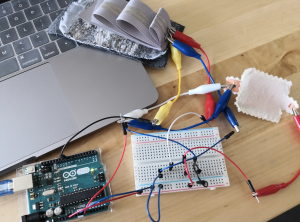
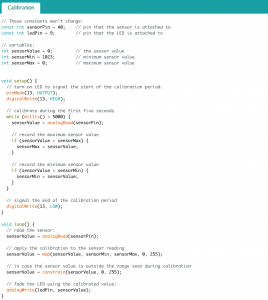
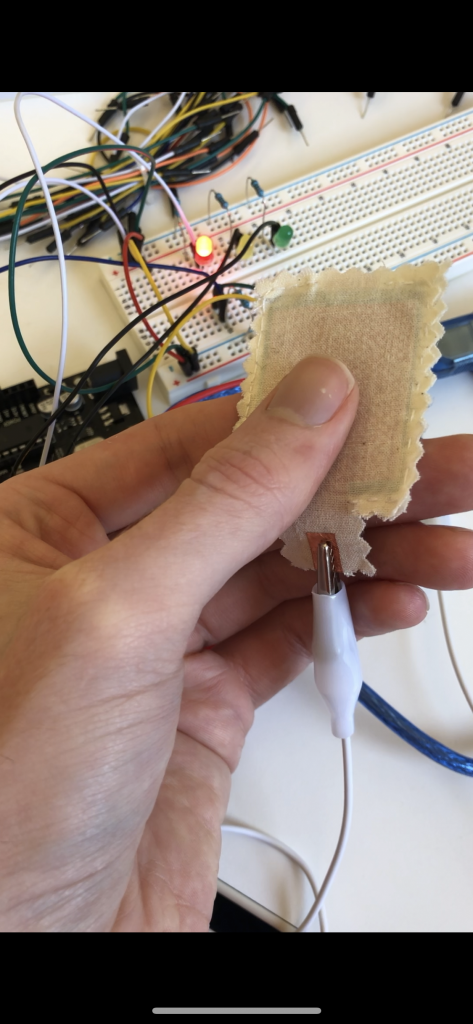
The first one is controlling the circuit with a button, I used the force sensor from the swatch exchange with the Calibration code, so the sensor can turn on/off the lights and control the brightness with the input force.


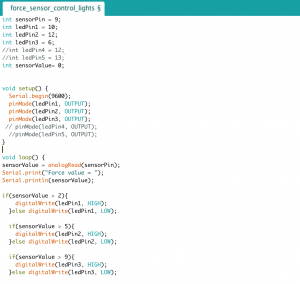
For the second circuit, I use the force sensor to control the 3 LEDs and they will light up one by one based on the input force value.


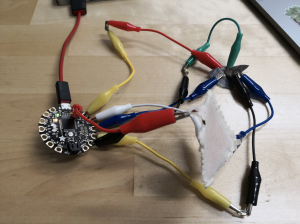
For the midterm project, I want to design an origami lamp with colorful organza fabric. The circuit will go inside and underneath the origami and the fabric will be the light defuser. I might incorporate the new Gemma M0 I just got into the lamp but it depends whether if I can figure out how to use it or not.


Week 6 – Carla

  1. Connect one of a soft switch to your Arduino. Use it to control an LED.

I decided to try out Lily tiny ( ATtiny-85). It quite tricky to set up and to control as desired. I got to control the LED with my soft switch.

2. Build a circuit with one constructed sensor (variable resistor), your Arduino, and 3 (or more) LEDs or an RGB LED. 

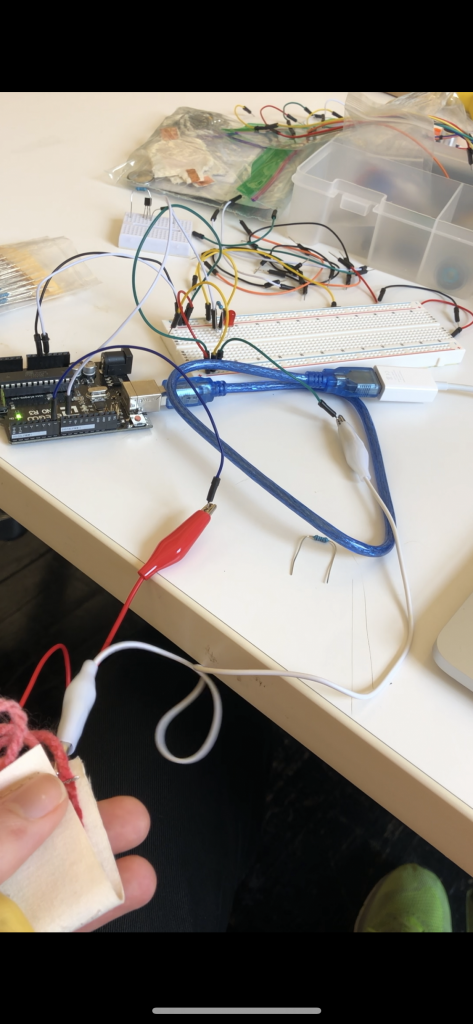
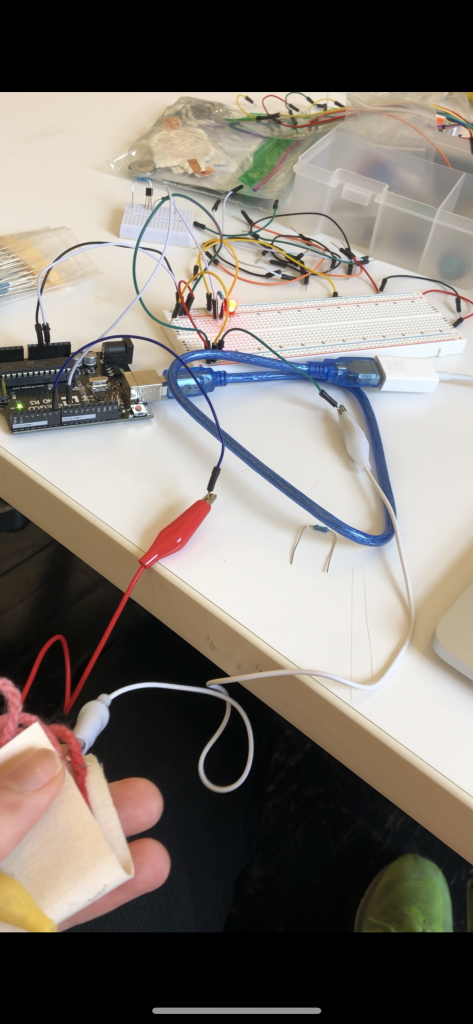
I tried with the Lily tiny but I didn’t manage to control the analog input properly. So I switched back to the Arduino UNO. I created a switch with copper fabric and Velastat that allows me to control the Leds easily.

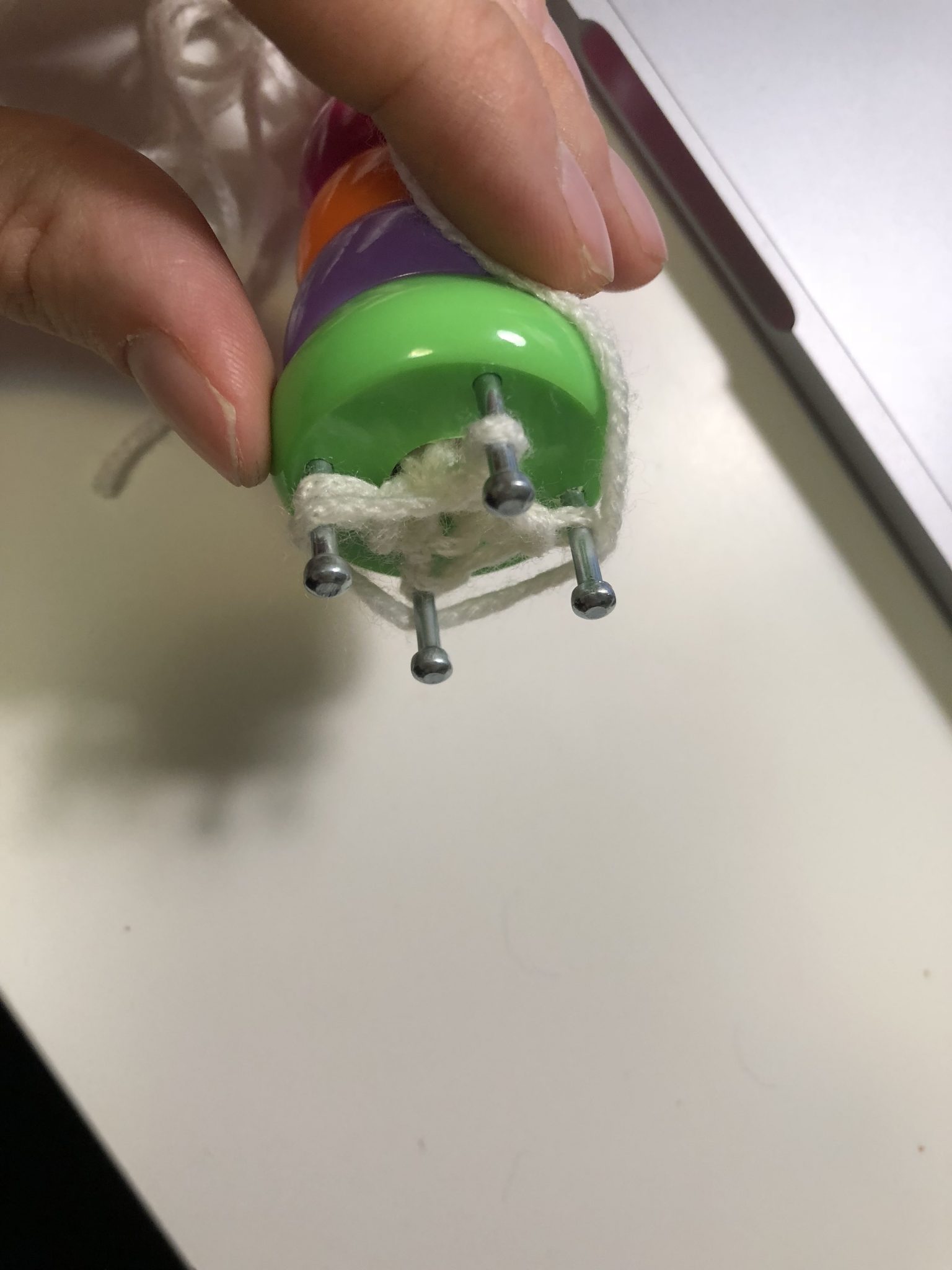
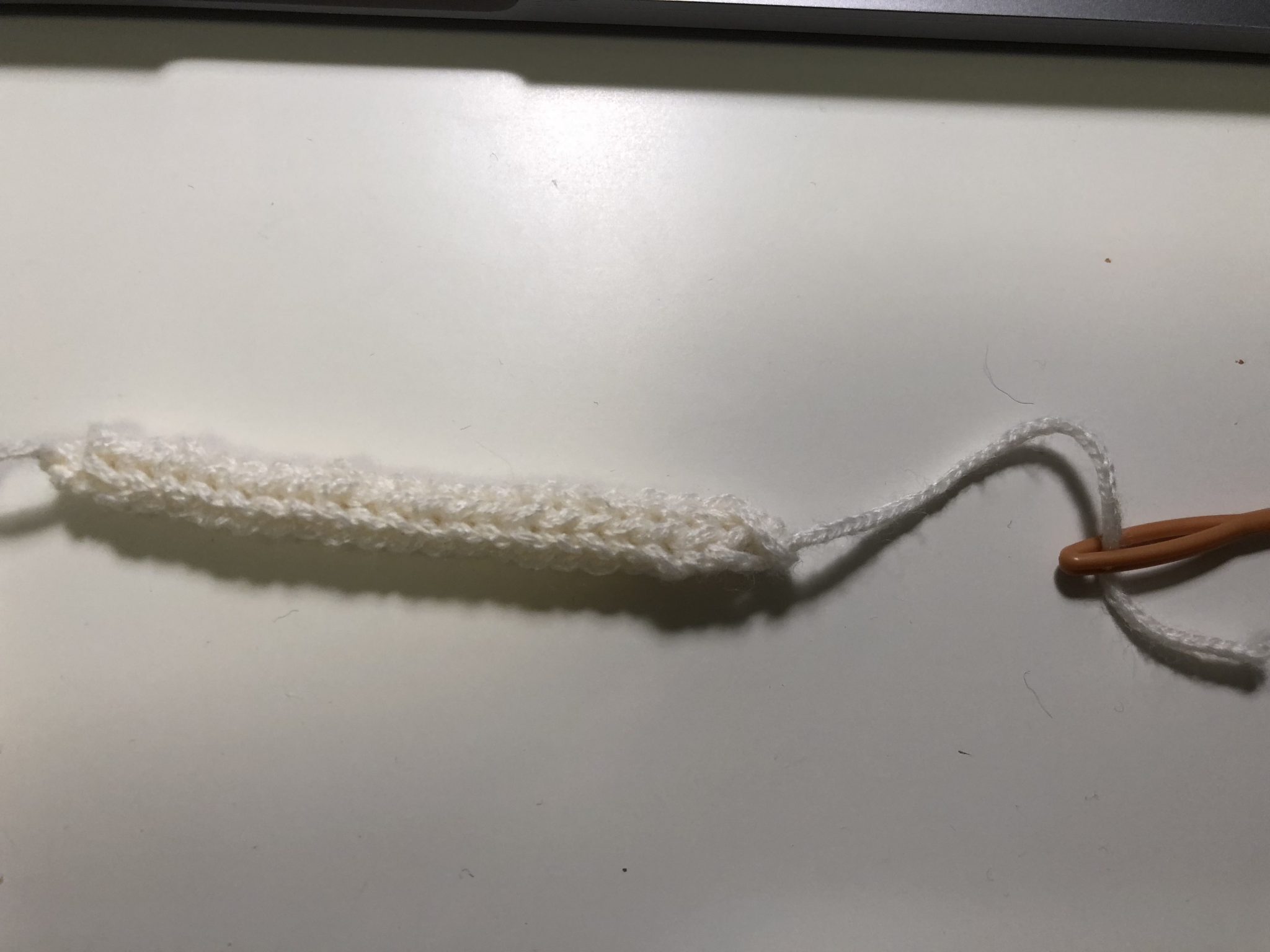
I wanted to create a stretchy switch with a french knitter, but I could use conductive yarn, so I used regular yarn.

It looks nice I could use it in the future.

Midterm proposal

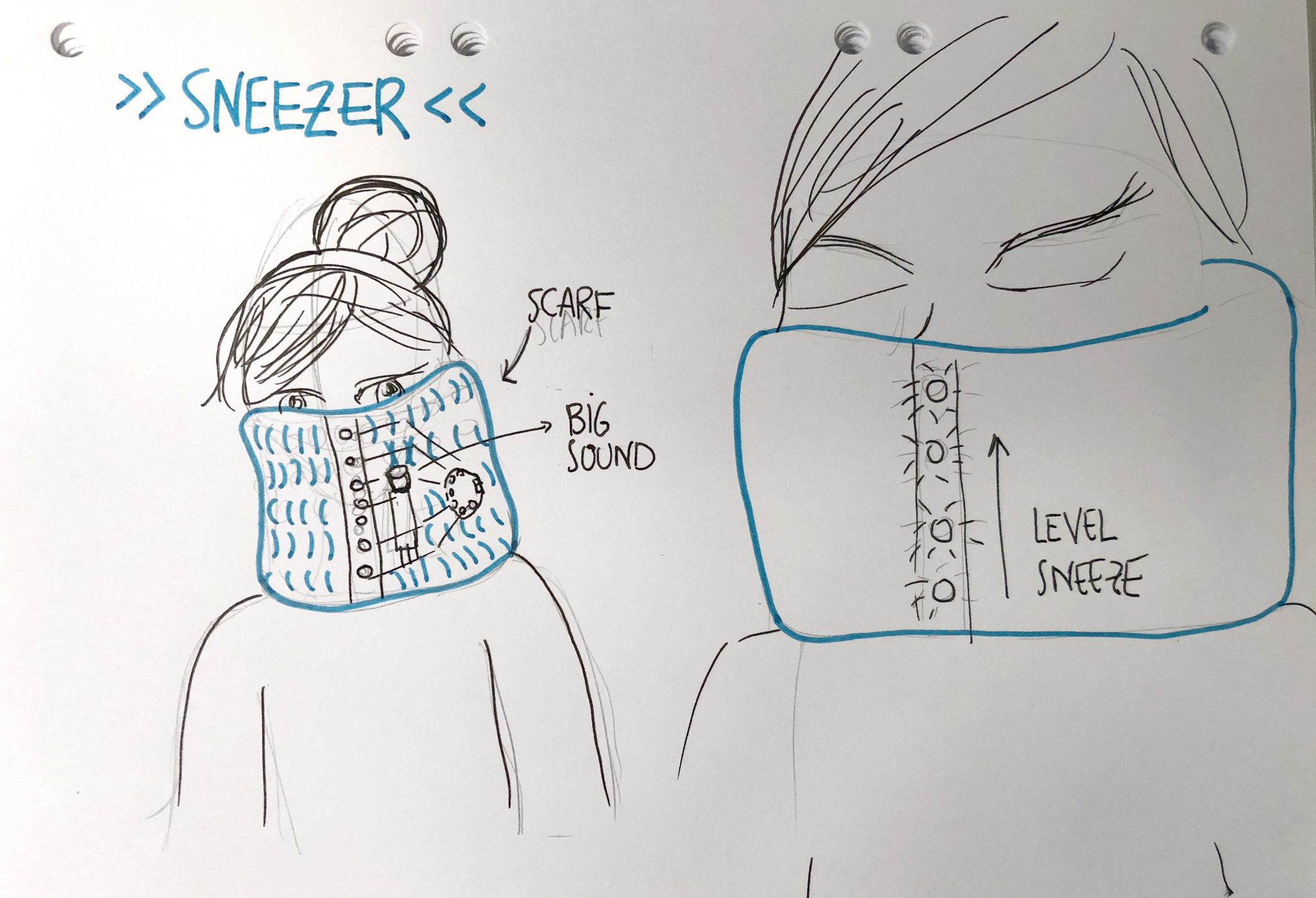
I’m planning on creating an interactive scarf. A very handy piece for those cold winters to measure the intensity of those persistent sneezes.

I have to figure out some details, such as how to control the signal with the lily tiny or how to power the system without wires.


Week6_Yixun

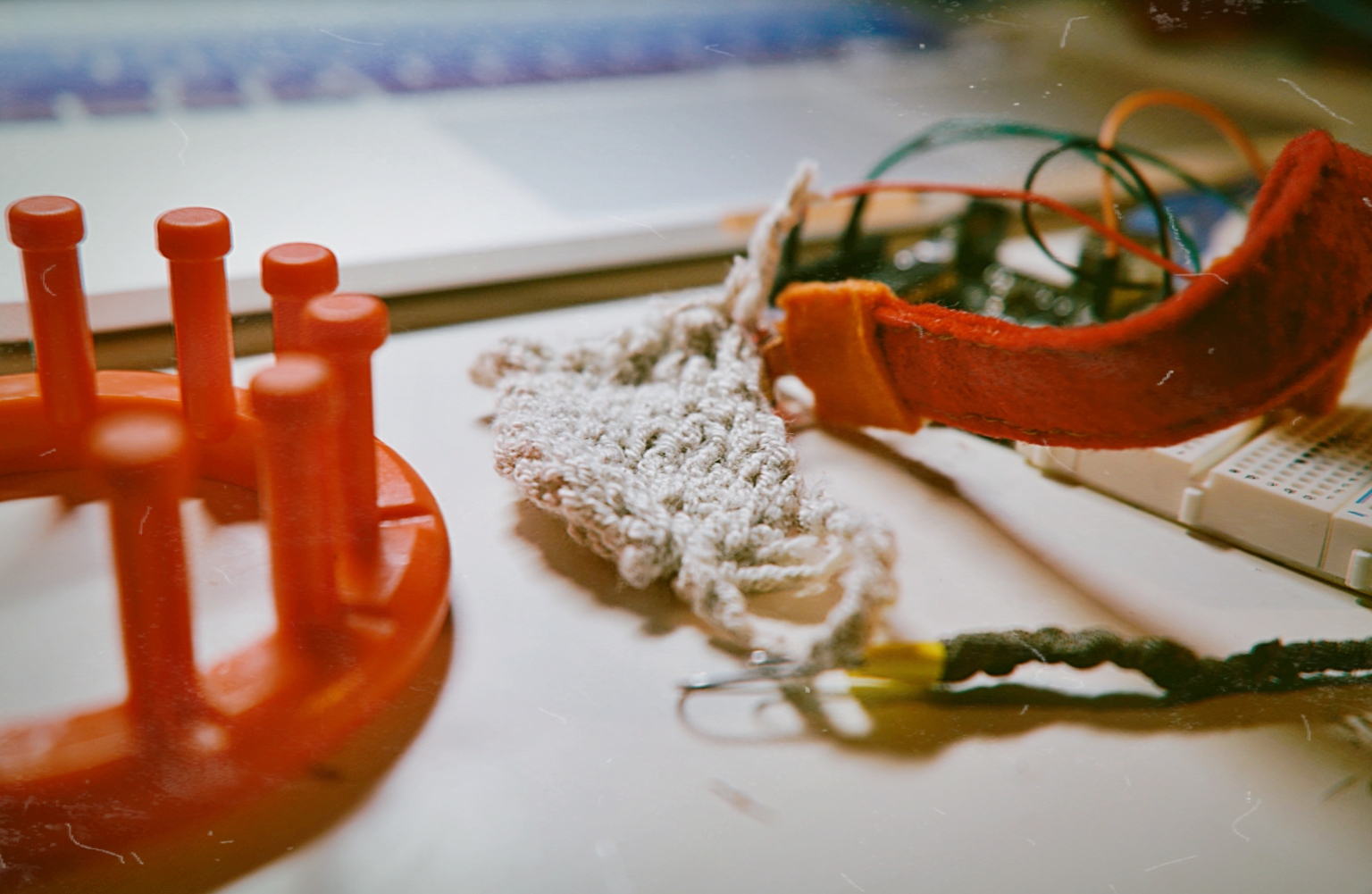
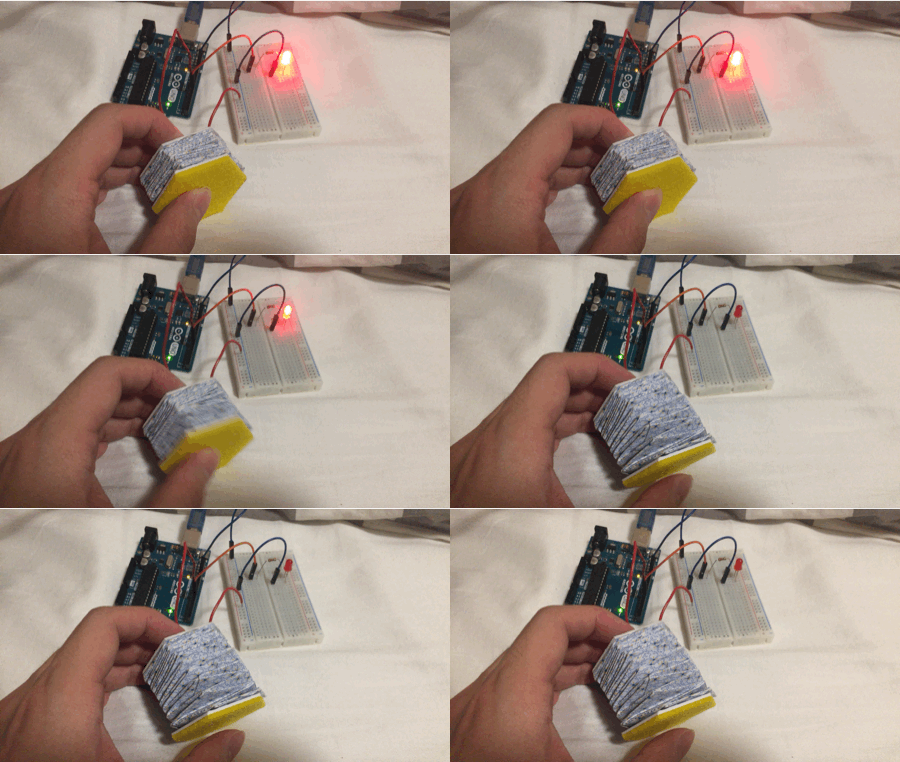
I used a knitting loom and the conductive yarn to make this soft sensor. The output of the sensor varies according to the shape of the knitting piece. If I fold the sensor, the output will decrease. So I wrote the code that if the output of the soft sensor reaches a certain number, the LED will be turned on.


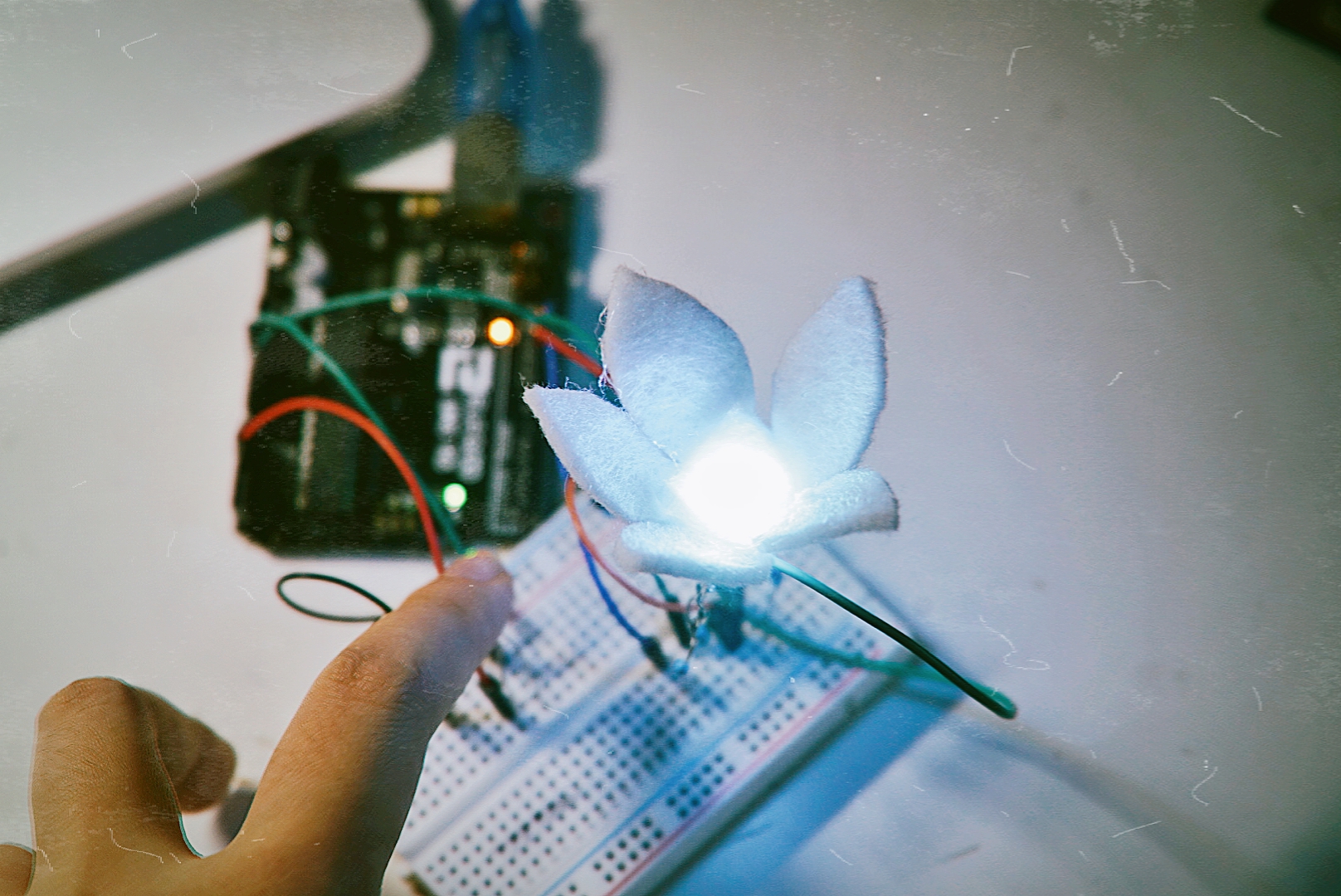
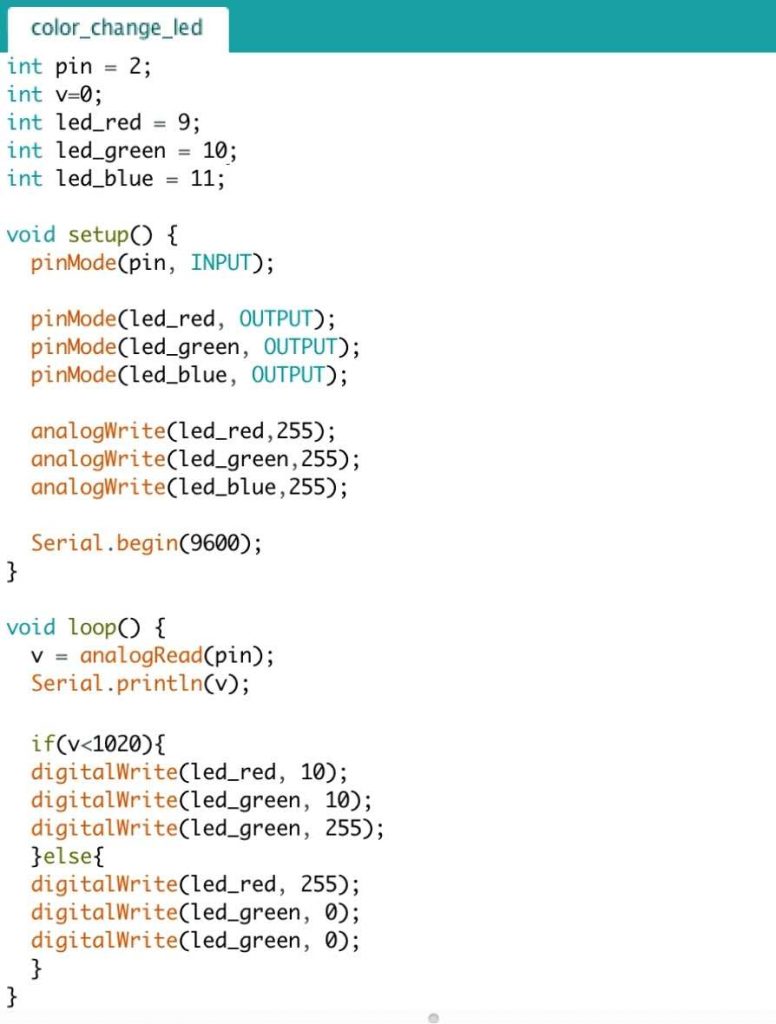
This is a fabric flower made by felt and an RGB LED. I used a photoresistance as the variable to change the color of the LED. Here is the screenshot of the code:

Midterm:

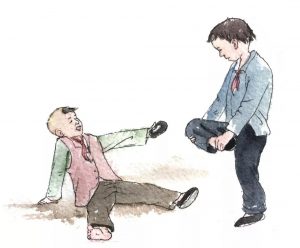
I am going to combine the midterm assignments from New Arcade and Computational Craft. This project will be game design garments that two players can wear and fight each other. The inspiration comes from a traditional Chinese game — Judose. It is a game played by standing on one leg and grasping the other, it is a physically competitive game with one simple rule, to knock your opponent over. The original version of the game is quite violent. What I am going to do is adding conductive fabric and LED instructions to the kneecap. Attacking your competitor on the particular area will cause your competitor to lose his points. The player who loses all the points first is the loser, and the other one is the winner.


Week 6- Adam Moore

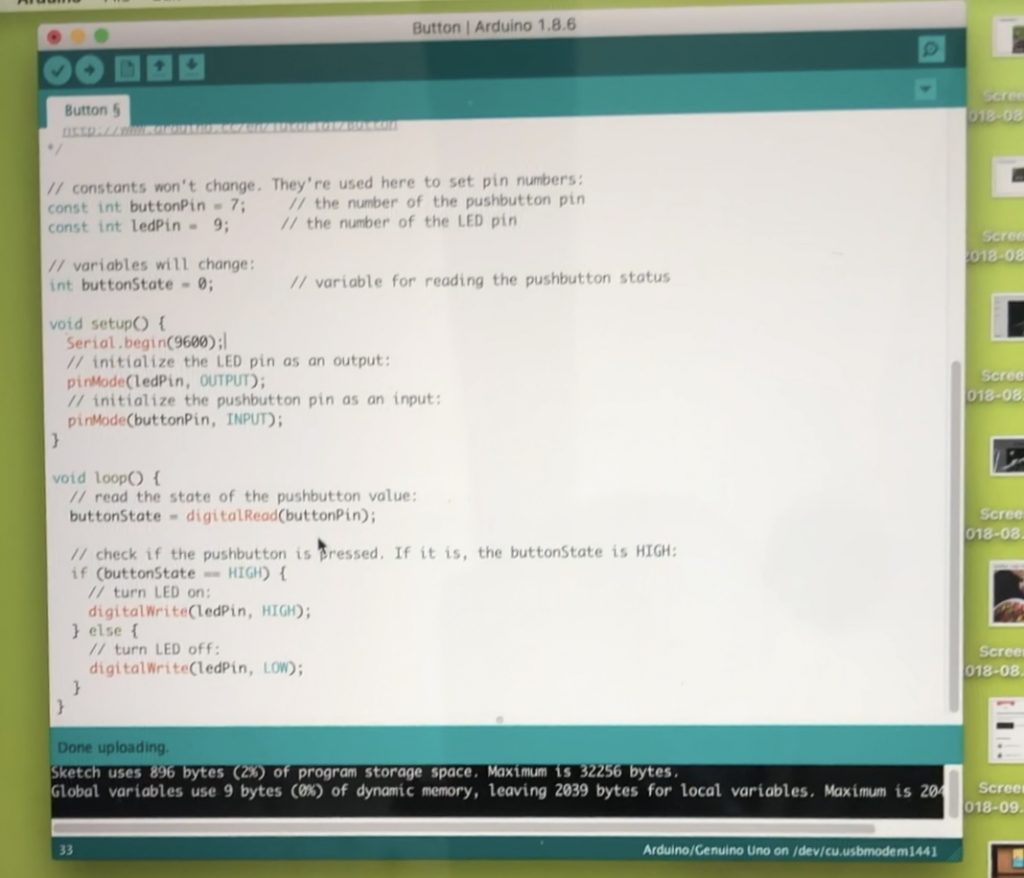
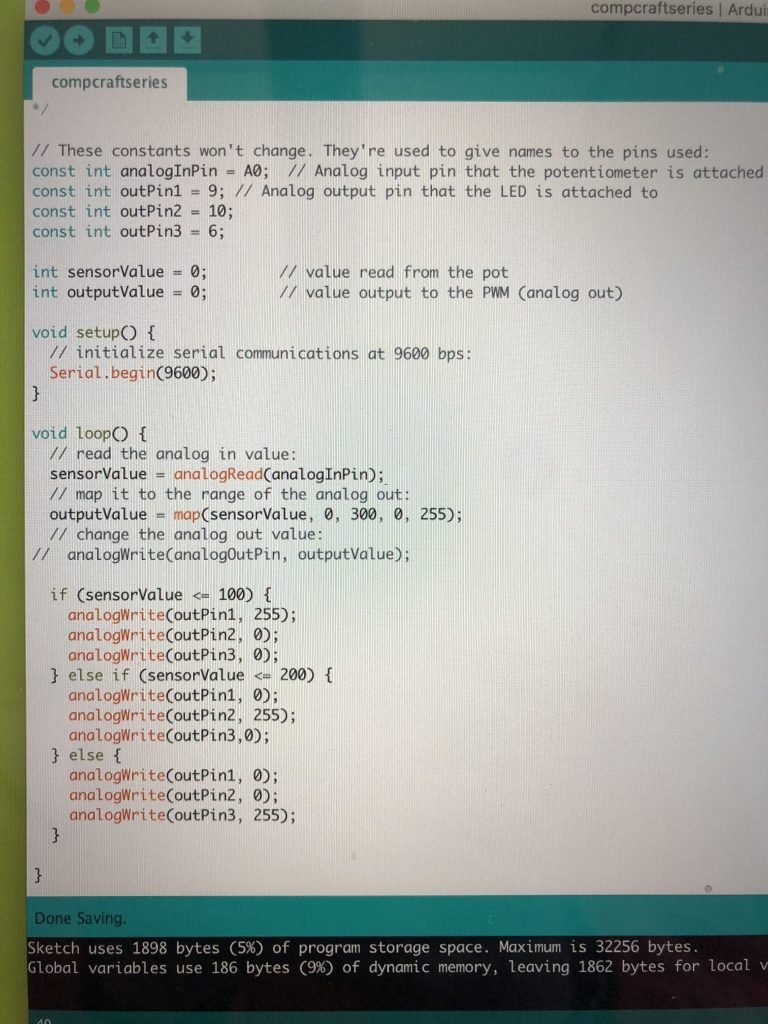
Here is the code for the two Arduino sketches I used to complete this homework. The first photo is the code for the button, the second is for the pressure sensor.

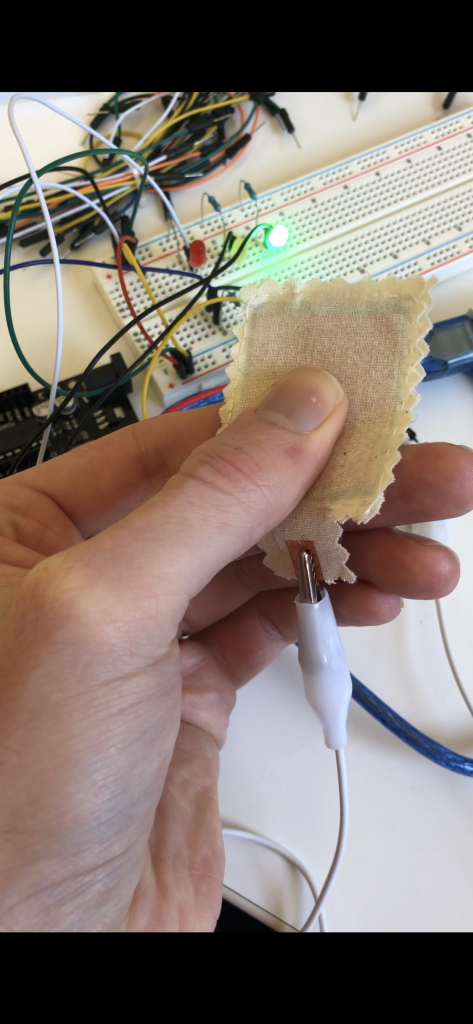
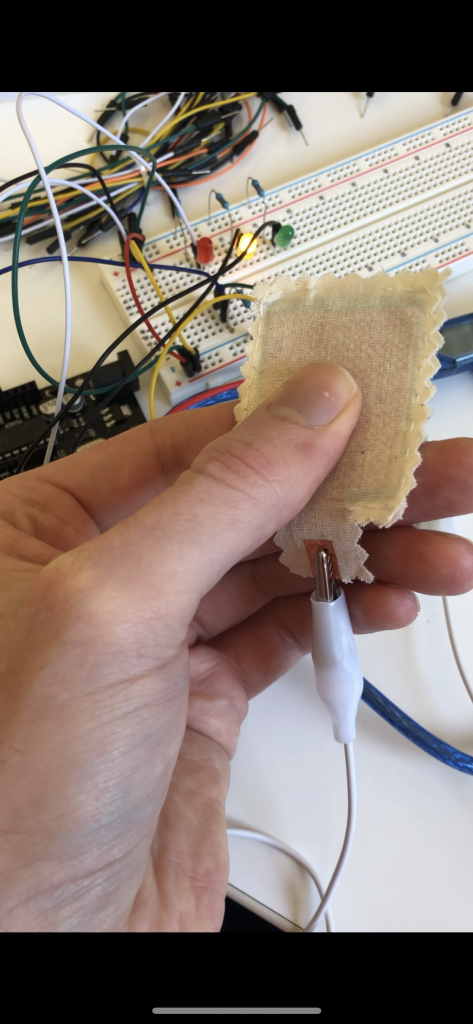
Here are screenshots of the pressure sensor in action!

Here are shots of the button working!

For the midterm I would like to build a modular lamp out of a cube of wood with holes drilled for LED’s. The base would be a the positive and negative terminals of the circuit. I’ll make a prototype and try to upload it before class on Thursday.

Week 6 – Neil V. Techapanichgul

LED CONTROL VIA BUTTON

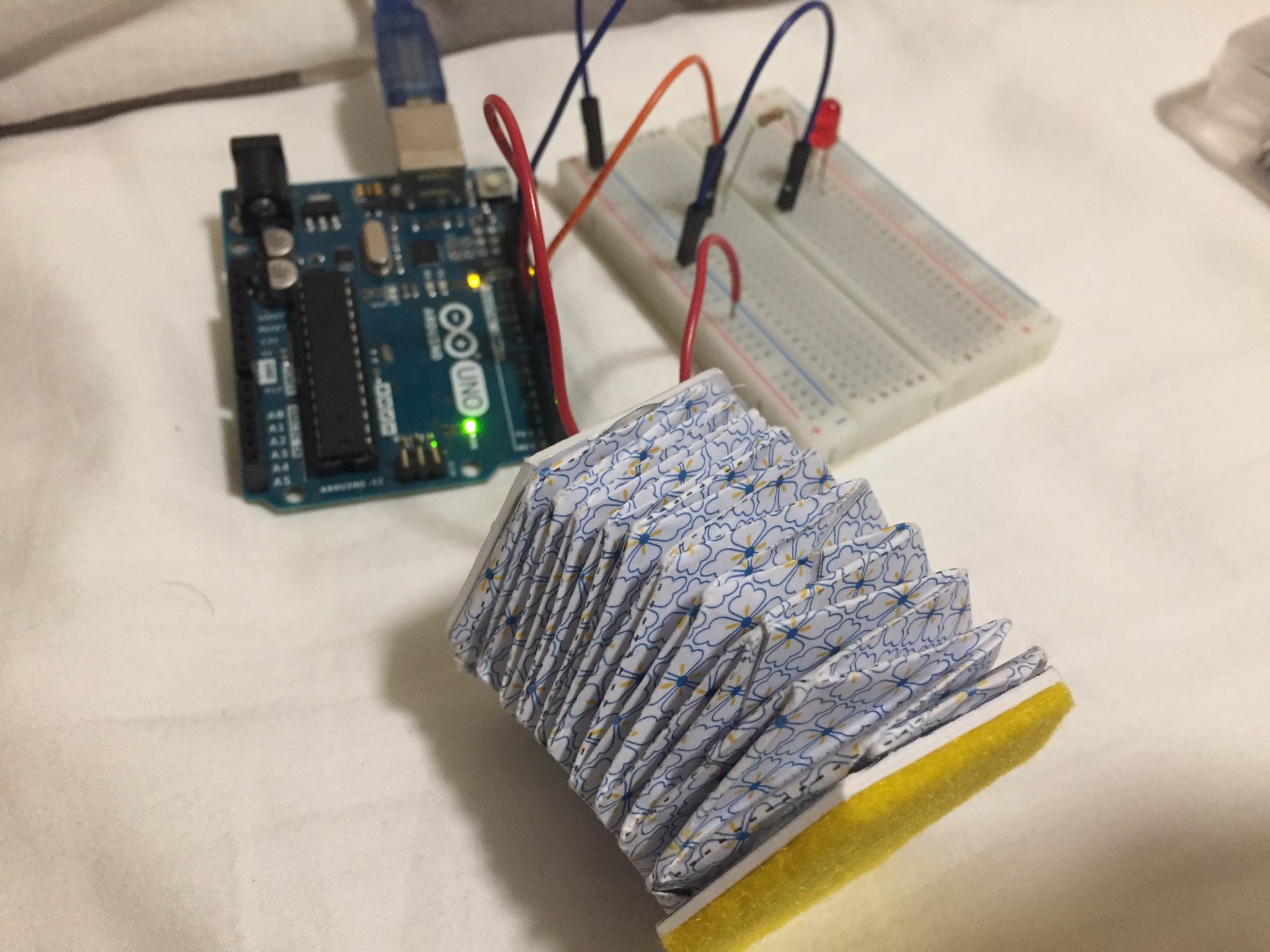
Thanks to Dario for the soft switch. It works perfectly fine. I like how squishy of the switch. The circuit is pretty simple. I use “INPUT_PULLUP” for the switch. It’s a quick tip for all buttons 😀
LED CONTROL VIA BUTTON CODE


/*
Button

The circuit:
– LED attached from pin 13 to ground
– pushbutton attached to pin 2 from +5V
– 10K resistor attached to pin 2 from ground

– Note: on most Arduinos there is already an LED on the board
attached to pin 13.

created 2005
by DojoDave <http://www.0j0.org>
modified 30 Aug 2011
by Tom Igoe

This example code is in the public domain.

http://www.arduino.cc/en/Tutorial/Button
*/

// constants won’t change. They’re used here to set pin numbers:
const int buttonPin = 8; // the number of the pushbutton pin
const int ledPin = 7; // the number of the LED pin

// variables will change:
int buttonState = 0; // variable for reading the pushbutton status

void setup() {
// initialize the LED pin as an output:
pinMode(ledPin, OUTPUT);
// initialize the pushbutton pin as an input:
pinMode(buttonPin, INPUT_PULLUP);
}

void loop() {
// read the state of the pushbutton value:
buttonState = digitalRead(buttonPin);

// check if the pushbutton is pressed. If it is, the buttonState is HIGH:
if (buttonState == HIGH) {
// turn LED on:
digitalWrite(ledPin, LOW);
} else {
// turn LED off:
digitalWrite(ledPin, HIGH);
}
}
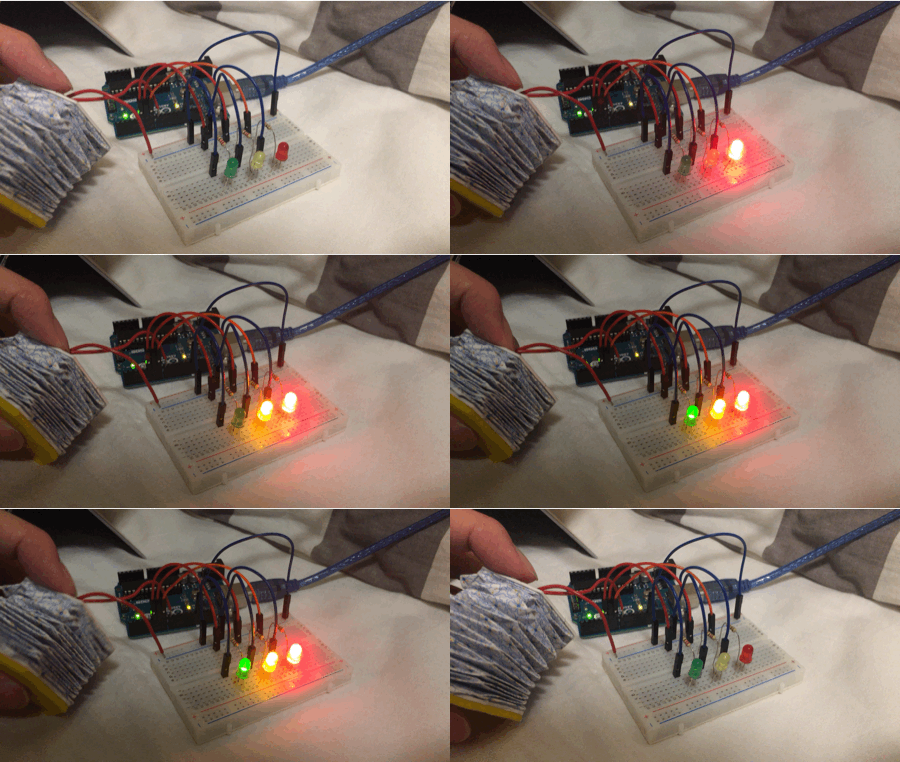

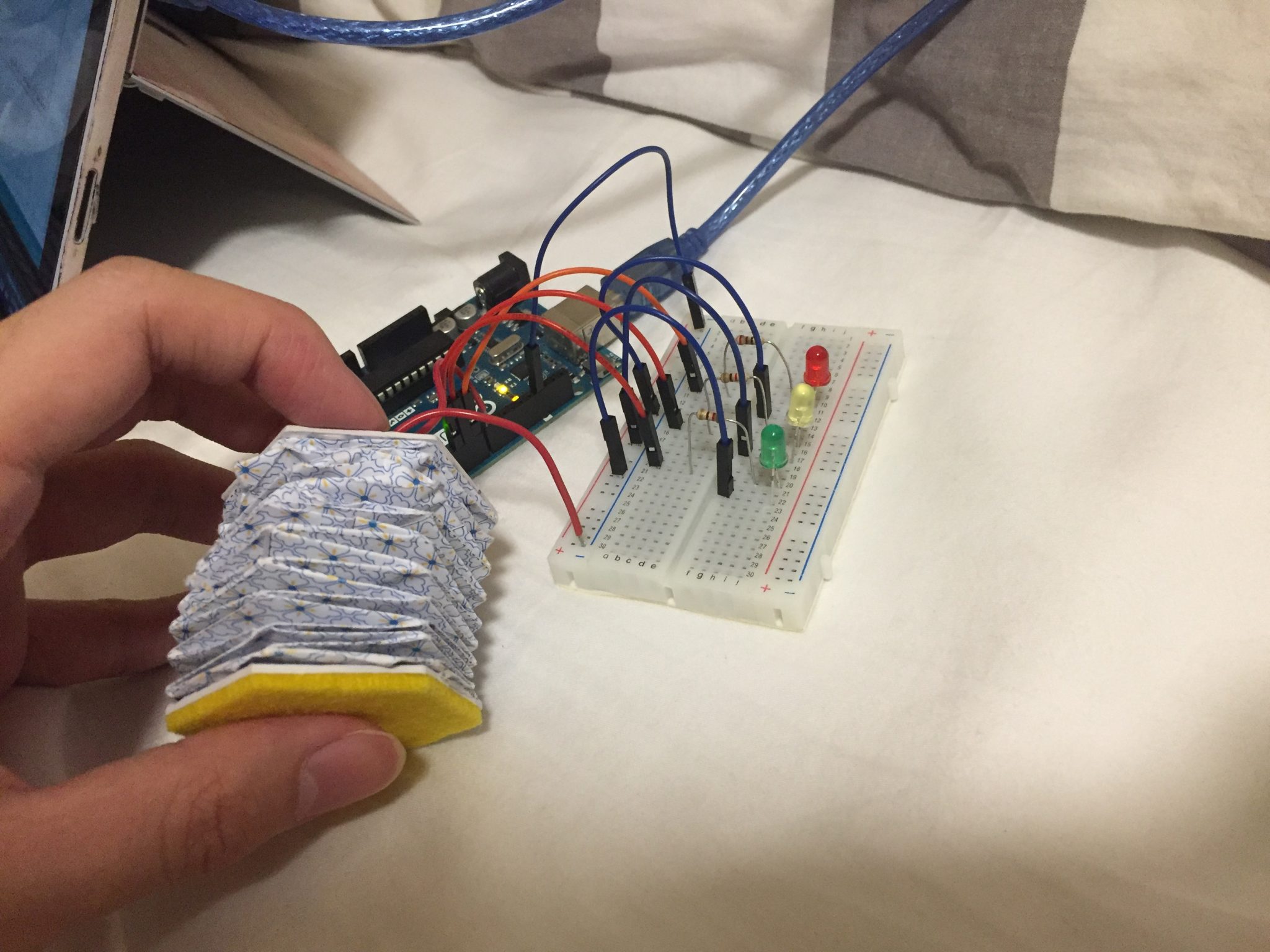
MARCH OF LEDs

It is tricky to make each of them light up when I press my switch. I have to make the specific states for them to light up in order. It’s pretty fun and cute with 3 LEDs with Red, Yellow and Green.
MARCH OF LEDs CODE


/*
Button

Turns on and off a light emitting diode(LED) connected to digital pin 13,
when pressing a pushbutton attached to pin 2.

The circuit:
– LED attached from pin 13 to ground
– pushbutton attached to pin 2 from +5V
– 10K resistor attached to pin 2 from ground

– Note: on most Arduinos there is already an LED on the board
attached to pin 13.

created 2005
by DojoDave <http://www.0j0.org>
modified 30 Aug 2011
by Tom Igoe

This example code is in the public domain.

http://www.arduino.cc/en/Tutorial/Button
*/

// constants won’t change. They’re used here to set pin numbers:
const int buttonPin = 8; // the number of the pushbutton pin
const int ledPin = 7; // the number of the LED pin

bool startCapture;
float Timer = 0;
float Duration = 10000;
int State = 0;

bool Pressed;
bool Added;

// variables will change:
int buttonState = 0; // variable for reading the pushbutton status

void setup() {
Serial.begin(9600);
// initialize the LED pin as an output:
pinMode(ledPin, OUTPUT);
pinMode(6, OUTPUT);
pinMode(5, OUTPUT);
// initialize the pushbutton pin as an input:
pinMode(buttonPin, INPUT_PULLUP);
}

void loop() {
// read the state of the pushbutton value:
buttonState = digitalRead(buttonPin);

Serial.println(State);

if (!Pressed && buttonState == 0)
{
Pressed = true;
}

if (Pressed && buttonState == 1)
{
Pressed = false;
Added = false;
}

if (Pressed && !Added)
{
State++;
Added = true;
}

if (State == 1)
{
digitalWrite(7, HIGH);
digitalWrite(6, LOW);
digitalWrite(5, LOW);
}

if (State == 2)
{
digitalWrite(7, HIGH);
digitalWrite(6, HIGH);
}

if (State == 3)
{
digitalWrite(7, HIGH);
digitalWrite(6, HIGH);
digitalWrite(5, HIGH);
}

if (State > 3)
{
digitalWrite(7, LOW);
digitalWrite(6, LOW);
digitalWrite(5, LOW);
State = 0;
}

}


MIDTERM IDEA

I want to make one big squishy doll that can emit some lights through its eyes by dragging the tail. It could be really cute! The technique I use is going to be wool felting.Image result for Felt Doll animal

Image result for Felt Doll animal

Week 5 – Lisa Ho

Nodes & Connectors

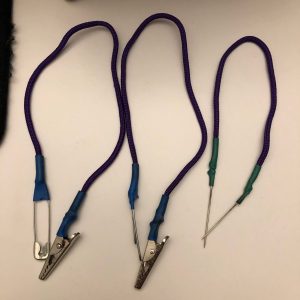
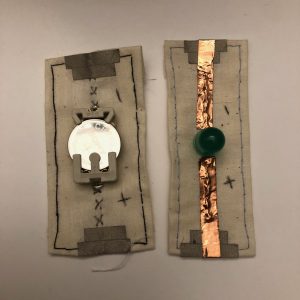
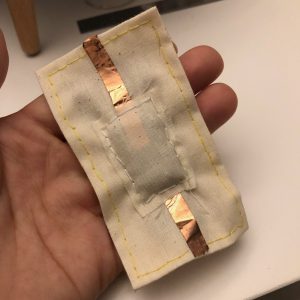
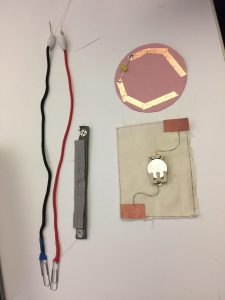
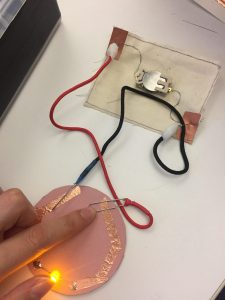
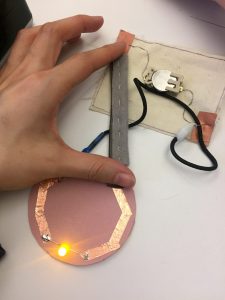
I built my two nodes- one with the battery with fabric and the one with LED with paper. I used the conductive thread and conductive fabric to make the battery node. I also sewed a lining at the edges of the rectangle fabric. For the LED node, I simply used a conductive tape and soldered the LED on it.

Two out of the three connectors I used the conductive thread in the middle of the rope and solder it at the ends onto either a paperclip. The other connector I used a stretchy conductive fabric and sewed a felt over it to make it look warmer and cuter. I used the sewable meta snaps in the ends.

A tool I would like to have in class

I would love to have a desk-sized ironing device where you can put your conductive fabric and the fabric you want to attach it to and just iron it quickly to it. You could leave it on and used it whenever without always having to heat the iron up.

Continue reading

Week 5 – Youchun Zhang

Nodes and Connectors

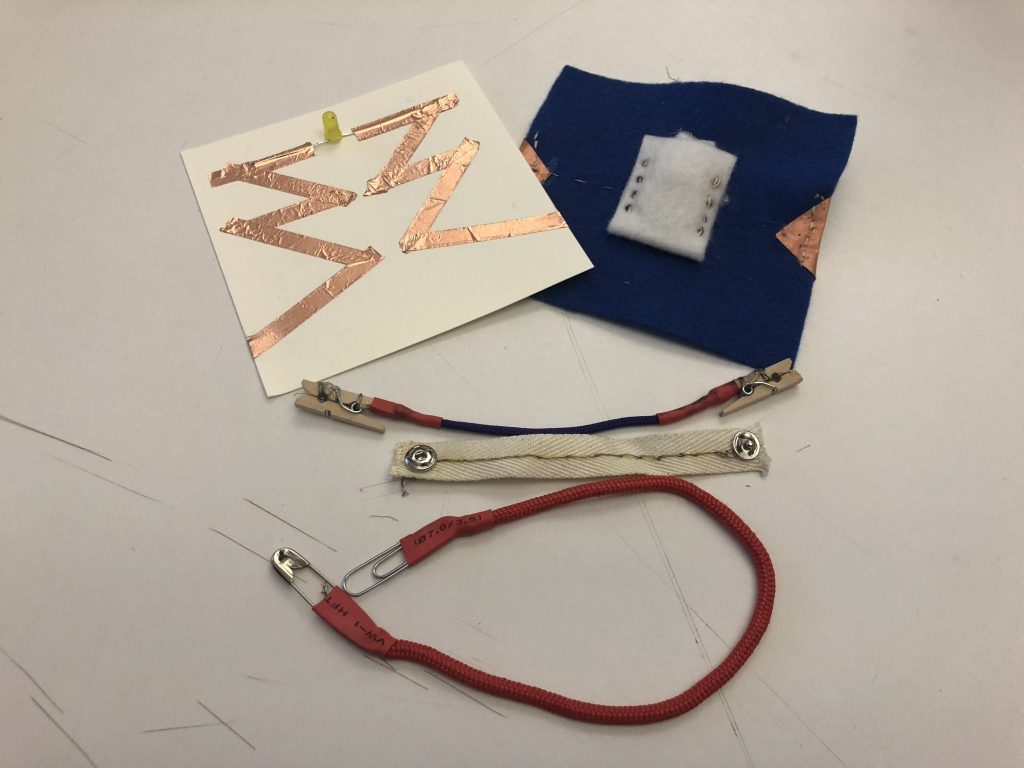
The two nodes I made this week are made with paper and felt. I used the copper tape, one piece of cardstock paper and a yellow LED to make the LED node. For the battery node, I used the conductive thread, the conductive fabric, a small piece of felt to make the battery holder, and a bigger piece of felt.

The three connectors are using the same structure in the middle – the conductive thread either sewed to a piece of fabric or inside the thick knitted thread. I explored different kinds of objects in the junction part. I found a small bag of tiny wood clips at the crafting store, which became a part of my first connector. The second one is made with the sewable meta snaps. In the third one, I used the paper clip and the pin.

A tool I would like to have in this class

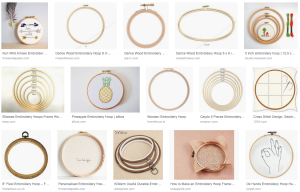
I wonder if there is an embroidery hoop that can be changed to different shapes so that all kinds of size of materials can be fixed to it. Most of the hoops are either circular or in an oval shape, but since the shape we created sometimes can be really random, more flexibility here would be great. 

Week 6 Assignment

  1. Connect one of a soft switch to your Arduino. Use it to control an LED.
  2. Build a circuit with one constructed sensor (variable resistor), your Arduino, and 3 (or more) LEDs or an RGB LED. Use one of the following control structures to turn the LEDs on and off in any sequence when the sensor or switch value changes: if, if/else, while() (e.g. when the sensor goes above a threshold, the LED turns one color; when it goes above another threshold, it changes to a second color, etc).
  3. Document both of these to the blog with images and your code.
  4. Midterm ideas due on the blog next class.

Week 5 – Anna Garbier


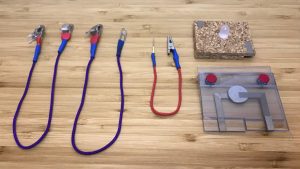
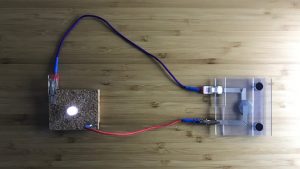
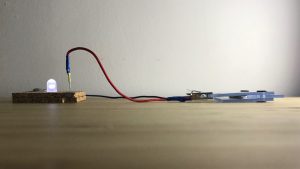
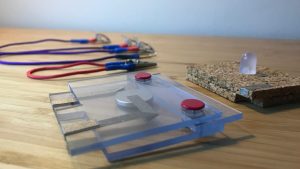
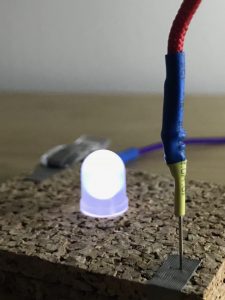
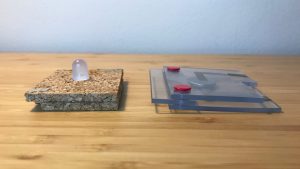
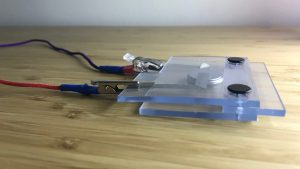
Node materials: two layers of cork with conductive fabric tape between, superglue, LED (node 1); soft plastic held together with push pins, visible conductive fabric tape circuits, removable cell battery (node 2)

Connector features: pin to gator clip (connector 1), plastic clip with conductive tape to plastic clip with conductive tape (connector 2), clip and plastic clip with conductive tape to paper clip (connector 3)

Design considerations: Short and long tape signify negative and positive ends when connecting to the LED node; these connecting points can be clipped onto or pushed into. Black and red pins help show positive and negative side of cell battery at a glance.