Category Archives: Uncategorized

Wireless Presentation + Homework Assignment

A link to the wireless presentation is on Slack, but I’ll post it here, as well. The homework assignment is the last slide in the deck.

https://docs.google.com/presentation/d/1YiEodRM9PhPs4DZVSUEFF6OZIR1qBG2472OeiLW_kGM/edit?usp=sharing

HOMEWORK:

Choose one of the wireless topics covered in class and put it to practice for use in everyday life. For example, use the IR sensor with a remote control to make a fan for a hot summer day.

Document your project in action and post to the class blog, including the list of materials used, a circuit schematic, and notes regarding wins and challenges.

Sound and Light Week 6: Part 1


  • Brief: After this week’s lesson about light and sound I wanted to find a project that would further enlighten me to the logistics of how sound can be sensed and a subsequent automatic action can be taken. The first idea for a project that came to mind was to use a vibration/sound sensor to sense a sequence of wave lengths and subsequently signal this information to us by lighting up a line of LED lights with escalating levels of brightness. Though that was a bit much for a novice like myself. Ergo,  I thought pursuing something of a practical and simpler fashion could be very informative, like turning on a light fixture by clapping.
  • Goal: Conclusively, the goal of this weeks assignment is to assemble an arduino system that can sense a clap and automatically turn on an LED/light. Hopefully I will be able to personalize the clap rhythm or code that will turn on the light.

  • Assembly:
    • Materials:
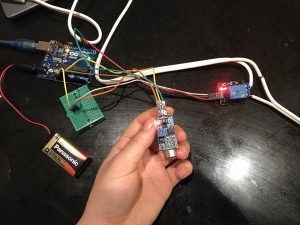
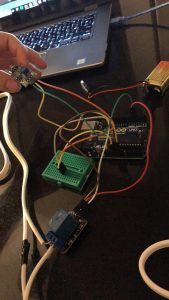
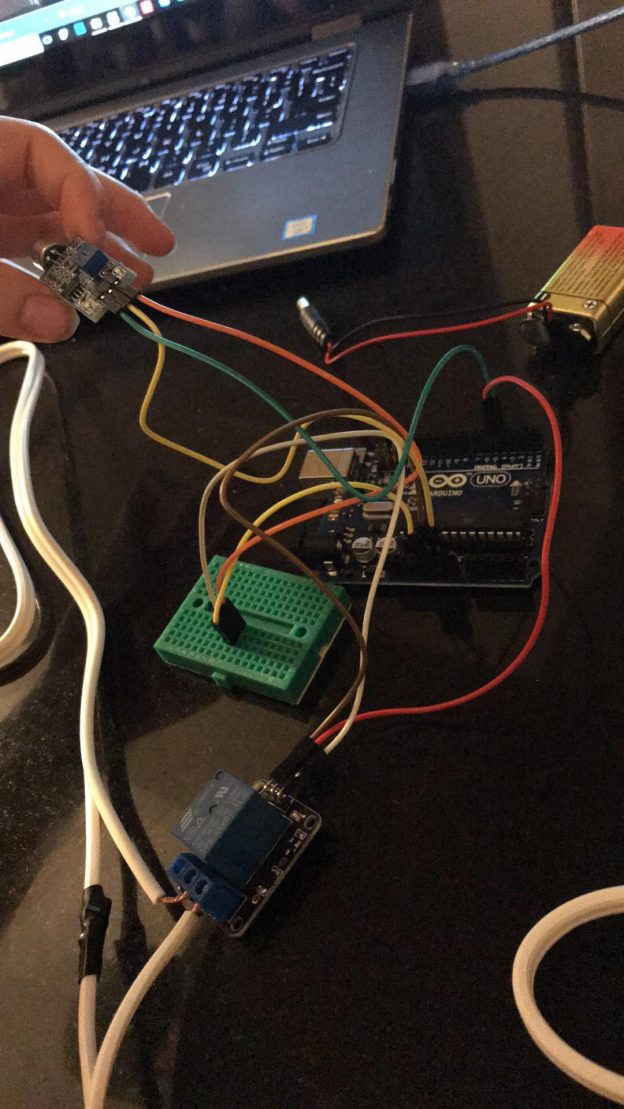
      • Arduino Board, Relay Module, Sound Sensor, 9V Battery, F to M Jumper 6x, M to M Jumper 1x, Breadboard, Battery Cable, mini screw driver, wire strippers and two prong light fixture.
  • Clap Sensing Arduino Light Switch Tutorial (<– Really amazing)
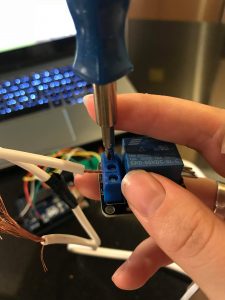
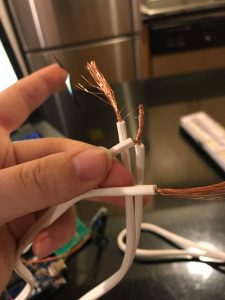
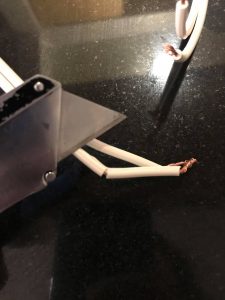
    • 1) Using your light fixture, expose the live wires
      • you can leave the neutral wire alone, but it might make the length crooked.
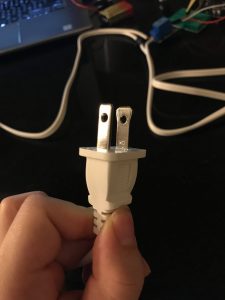
      • The live wire is the side that runs along the the more narrow prong of the outlet head.
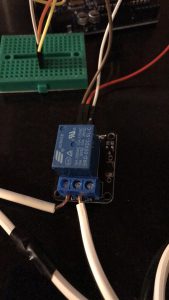
    • 2) After exposing the wire connect them to the relay open pins of the relay module.
    • 3) Using 3x of the F to M jumpers, connect the Relay GND pin will be connected to the GND pin of the Arduino.
      • The Relay VCC pin will be connected to the +5V pin of the Arduino.
      • The Relay INPUT pin will be connected to the Digital 5 pin of the Arduino.
    •  4) Connection of the Sound Sensor uses 3x of the F to M jumpers
      • The Sound Sensor VCC pin will be connected to the +5V pin of the Arduino.
      • The Sound Sensor OUT pin will be connected to the Digital 4 pin of the Arduino.
      • The Sound Sensor GND pin will be connected to the GND pin of the Arduino.
    • 5) Connection of the breadboard, using 1x M to M jumper
      1. Abreast from one another connect the M to M jumper to the 5v pin in the Arduino.
      2. Connect the relay module’s VCC: positive power supply M jumper end to the bread board (abreast the 5v connection).
      3. Connect the VCC: positive power supply of the sound module to the breadboard abreast the module jumper.
    • 6) Up load code:
    • 7) Connect 9V battery with cable to Arduino.
    • 8) Plug in light and turn on.
    • 9) Start clapping because now you got light!
  • How it works: Video
  • Problems:
    • The biggest problem I had with this project was due to my own lack of knowledge. In the very informative and simple video tutorial of how to make a clap sensing light switch the architect does not articulate which of the two wired cables are neutral and live (probably because most people know, but I didn’t). Accordingly, my first time around I didn’t connect the live to the relay module, instead I connected the neutral so initially my light didn’t turn on at all. I was stumped and very discouraged by the 2nd time I had taken it apart and put it back together again. The next day I did some research on how to fix cords chewed up from pets and during this tutorial I learned that in addition to my neutral and live connection problem I probably damaged the wires post stripping. By the third trial I had made a solid connection and miraculously the light turned on and could sense my clapping… snapping, and any high pitched double ” bang.”
  • Images:

    • 7) Insert the Read More quicktag, otherwise your post will go one forever.

WEEK 5 hw – Carla Molins


  • Goal of the project and/or desired interaction

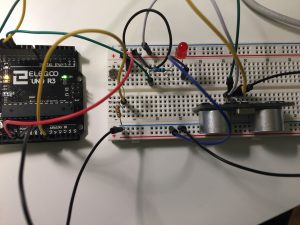
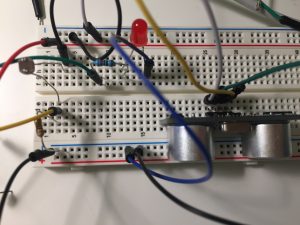
Create a circuit that activates an LED just when both photocell is covered and ultrasonic sensor has something close enough.

  • Quick description of assembly and list of core components

1x Arduino

1 x medium breadboard.

1 x red LED

1x ultrasonic sensor

1 x photocell

1x resistors (220 ohms) – resistor

1 x resistors ( 10K ohms) – photocell

Jump wires

  • How it works

By default the light is off (LOW). When the photocell is covered OR the ultrasonic detects an object the LED stays the same. Just when both are covered triggers the system to light up the LED.

  • Any problems you encountered and/or solved

I had to think through my if statements before coding.

Images of your circuit 

https://github.com/Lywa/carla_molins_Pcomp/tree/master/WEEK_5_hw Continue reading

Week 5 – sensors

Goal of the project : Turn on the light according to distance and ambient light
Core components : Led light, photocell, 220 Ohm resistor, 1k resistor, ultrasonic sensor, arduino
How it works : the ultrasonic sensor measures the distance and the photocell measures the ambient light. An if statement combines the two measurements to control the led light
Problems encountered : the led light blink when is on. I couldn’t find a way to connect the photocell data without using a map function

Continue reading

Week 4 Xu


The goal of the project was to create a locker that green LED opened when the right color code was pressed. The red LED opened while the code remains wrong.

Components

1x Arduino

1 x breadboard.

1x green LED

1 x red LED

3 x buttons

2 x resistors (220 ohms) – resistors

4 x resistors ( 10K ohms) – buttons

Jumper Wires
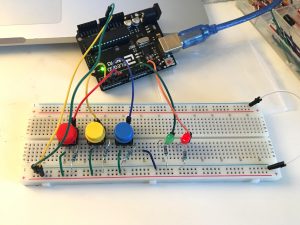
How it works:

If it is in the right sequence, green LED will open
Press the button sequentially once a time with no repeat
Green led means unlocked (right), red led means locked (wrong)

Code:

const int blue = 3;
const int red = 4;
const int yellow = 2;
int ledRed = 13;
int ledGreen = 9;

int lastRed = LOW;
int lastBlue = LOW;
int lastYellow = LOW;

int i = 0;

void setup() {
// put your setup code here, to run once:
pinMode(blue, OUTPUT);
pinMode(red, OUTPUT);
pinMode(yellow, OUTPUT);
}

void loop() {
int redState = digitalRead(red);
int blueState = digitalRead(blue);
int yellowState = digitalRead(yellow);

if (redState == LOW && lastRed == HIGH) {
if (i == 2) {
i = 0;
} else {
i = i + 1;
}
}

if (blueState == LOW && lastBlue == HIGH) {
if (i == 2) {
i = 3;
} else {
i = 0;
}
}
if (yellowState == LOW && lastYellow == HIGH) {
if (i == 3) {
i = 4;
} else {
i = 0;
}
}

if (i == 5) {
digitalWrite(ledRed, LOW);
digitalWrite(ledGreen, HIGH);
}
else {
digitalWrite(ledRed, HIGH);
digitalWrite(ledGreen, LOW);
}

lastRed = redState;
lastBlue = blueState;
lastYellow = yellowState;
}
 

Link

A tricycle modified by Canadian artist Nicholas Hanna mimics the Chinese custom of writing temporary messages on the road with water. A computer strapped to the handlebars of the Water Calligraphy Device allows the rider to type the Chinese characters they wish to spell out. These characters are transmitted electronically to a set of valves, which release water droplets in programmed patterns as the trike moves forward.The Water Calligraphy Device (水!法器) is inspired by the Chinese custom of writing calligraphy in public spaces with a water brush as a contemplative and poetic act. Calligraphers writing passages of poetry, surrounded by a group of onlookers, are a lovely presence in Beijing parks.


This is another work from Hanna that I like.