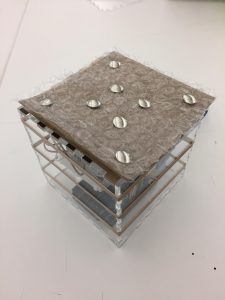
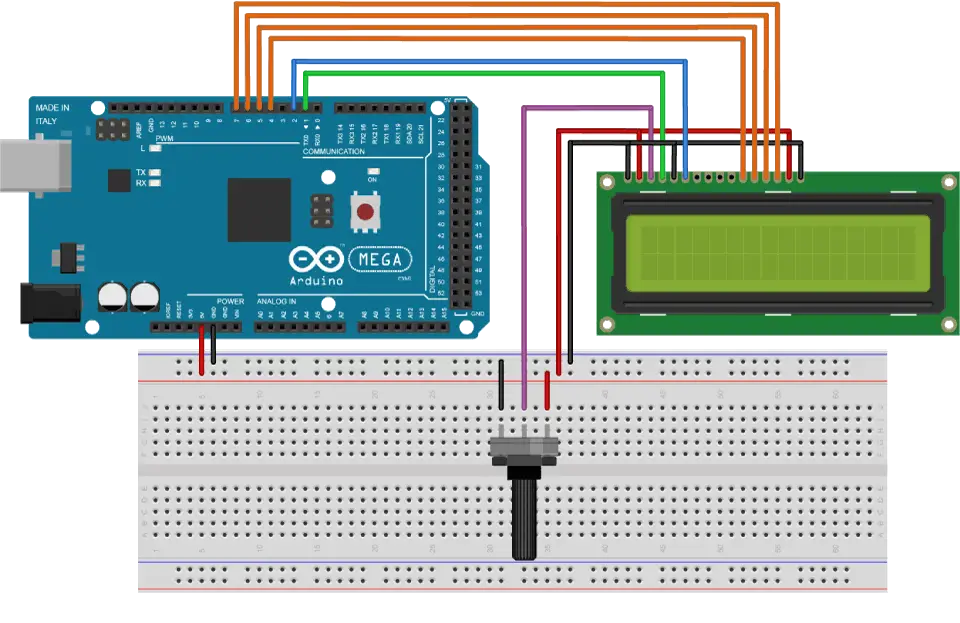
Sound + Light – Dario N (Week 6)

PART 1

Goal of the Project:

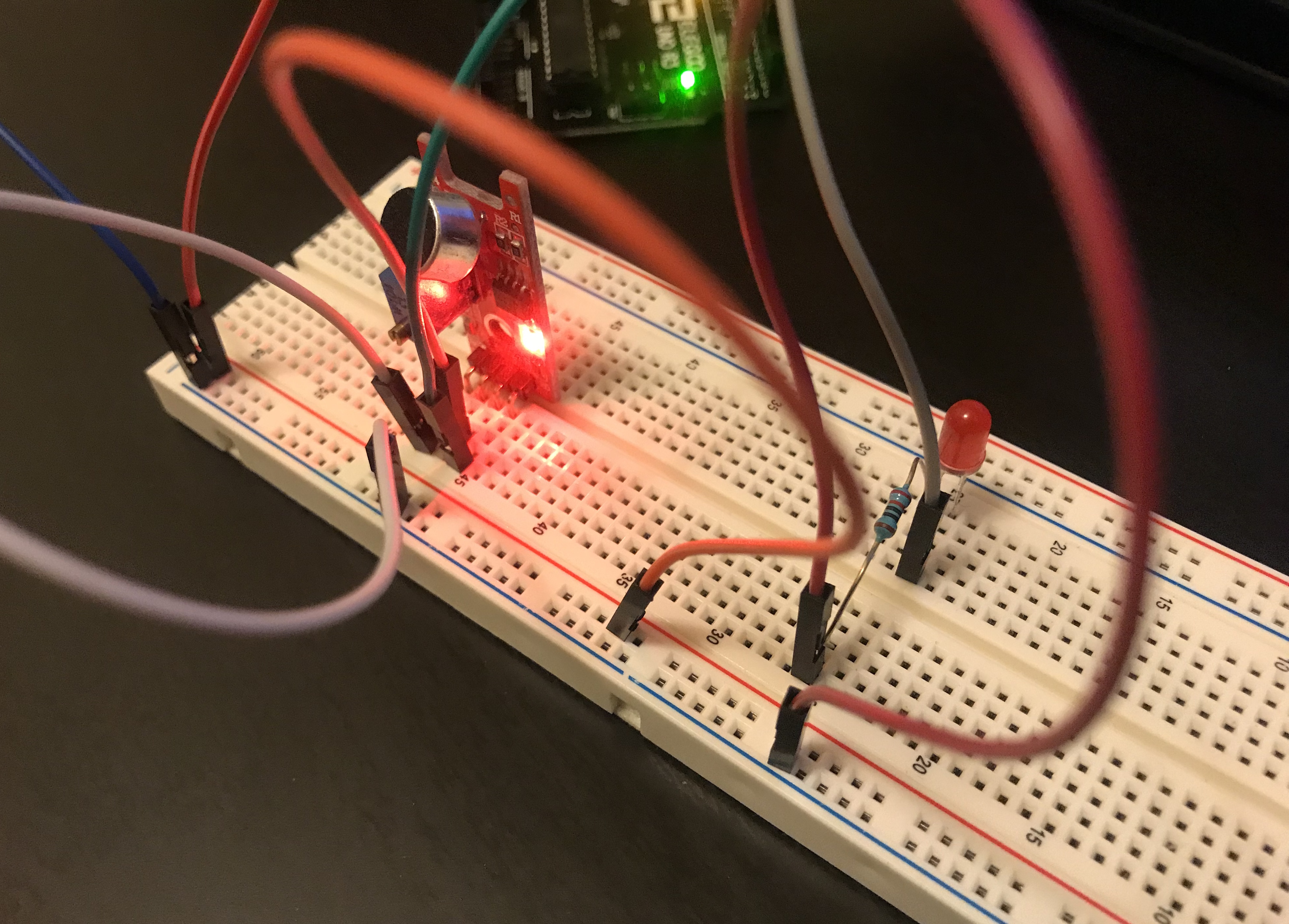
The intention with this project was to explore the infinite creative possibilities of playing with the relations between light and sound using a microcontroller. In this particular case, I wanted to explore new sensors such as BIG sound as input that triggers other process such as turning on and LED.

List of Components:

  • x1 Arduino Uno
  • x1 Breadboard
  • x1 Big sound module
  • x1 RED LED
  • x1 220 kohm Resistors
  • Jumper Wires

Assembly Process:

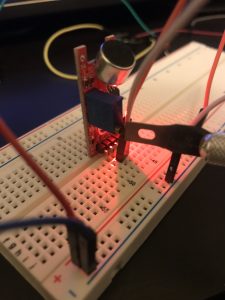
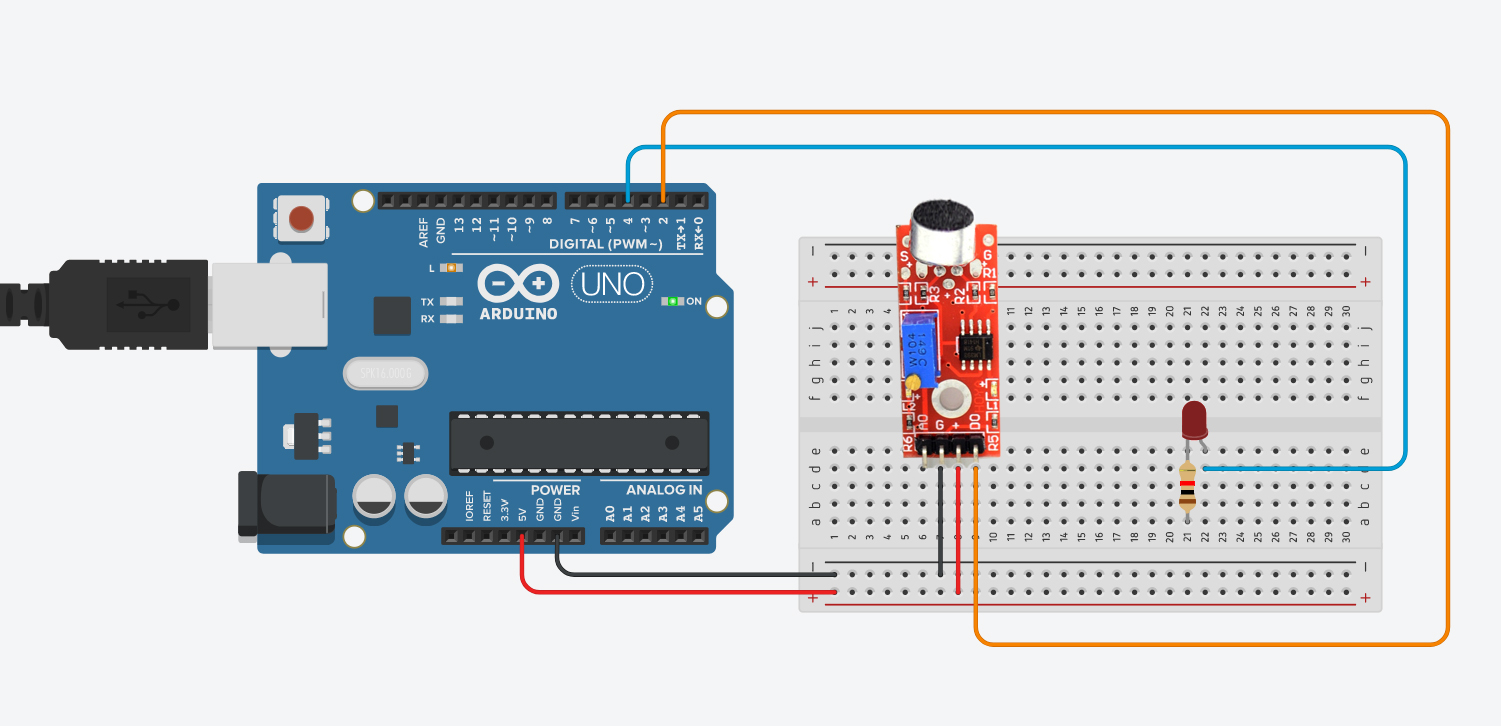
To create this project, first, the big sound module has to be connected to Arduino (We can use a Digital pin or Analog Pin. In this case, we used the digital pin 3, but we need to tell Arduino we are using it as DIGITAL input). Then we connect the LED to a digital pin 4 as an OUTPUT.

How it works:

To test the Big sound module, the 2 LEDs of the module will light up. In order to control the sensibility of the module, we need to move the built-in potentiometer in the module using a screwdriver. The idea is to turn it to the left to reduce resistance and add sensibility. As soon as the led turn off, that means the module is ready. Then we connect an LED to a pin and set it as OUTPUT. The result? The LED will respond to the high and low frequencies received from the sounds from the surroundings.

Problems:

Controlling the sensibility of the bid sound module represented a challenge. I wasn’t able to get an important sensibility value in order to control the LED. To test it, I had to create sounds with deep basses and had to be fairly loud. I also test the “small sound” module and the issue was even worst.
Arduino Code (File):

https://www.dropbox.com/s/rgi5s89rif0mg1b/DarioNarvaez_HW6.ino?dl=0

Circuit Diagrams:
References: 

https://create.arduino.cc/projecthub/iotboys/control-led-by-clap-using-arduino-and-sound-sensor-e31809

PART 2

I2C Protocol:

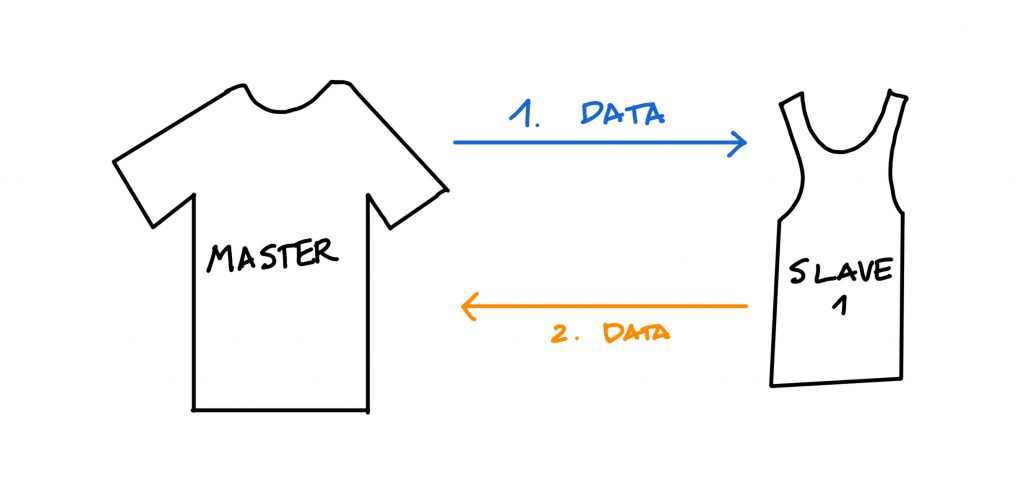
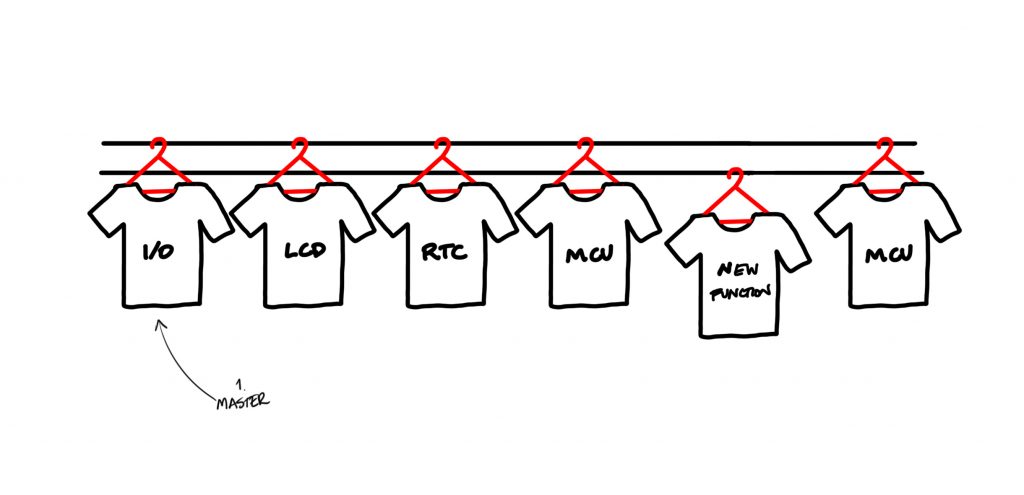
Or Inter-Integrated Circuit is a protocol that allows to connect multiple “slave” devices to a one “master” device. It’s the most used between electronic devices (microcontrollers, sensors…cellphones, cars…). The connection between a microcontroller (Arduino) with sensors and modules are good exaples of Master-Slave relation, where both can communicate to each other, but the communication is initiated only by the master.

Pros:

Only requires 2 wires that can support multiple devices for the communication (bus connection) up to 127 devices.

Simple to use, reliable and inexpensive.

Cons:

Short distance communication with a single device

Hardware is more complex than other protocols
Resource:
http://www.robot-electronics.co.uk/i2c-tutorial

https://www.youtube.com/watch?v=qeJN_80CiMU

Communication protocols: UART and SPI

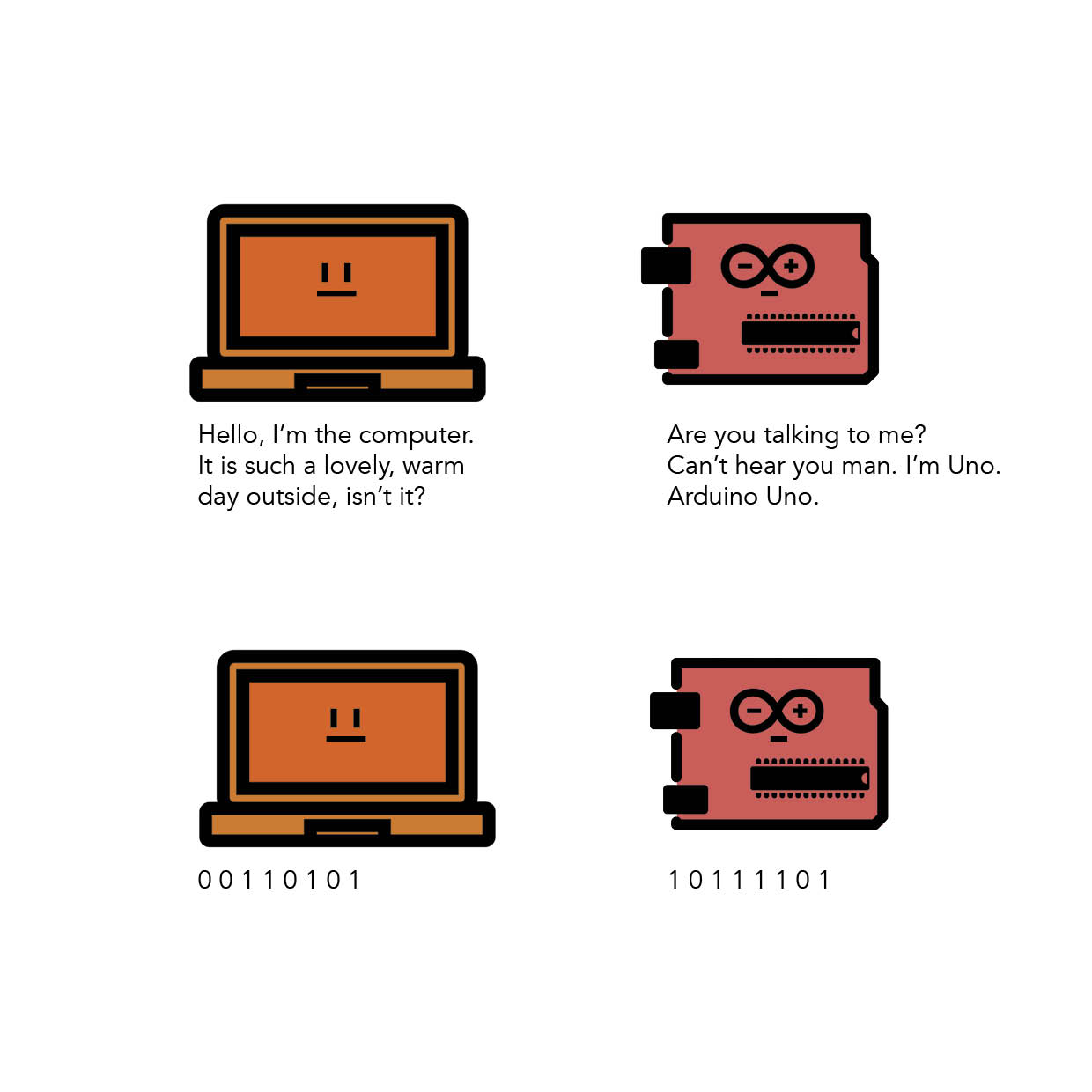
Electronics are all about interlinking individual circuits to create a larger system. In order for the individual circuits to exchange information/ “talk” with each other it is important that they speak the same language (or technically speaking share a common communication protocol).

Just as we have developed languages that we use for communication, electronic circuits speak in the binary language- a long string of information- made up of only 0’s and 1’s.

But even when they speak the same language, they should have a channel of communication between them (Think of it as the air that helps us talk to each other by transferring the vibrations caused by sound waves). There are hundreds of communication protocols that help circuits talk to each other. They can be broadly categorized into parallel or serial communication protocols.

Continue reading

Sound and Light Week 6: Part 1


  • Brief: After this week’s lesson about light and sound I wanted to find a project that would further enlighten me to the logistics of how sound can be sensed and a subsequent automatic action can be taken. The first idea for a project that came to mind was to use a vibration/sound sensor to sense a sequence of wave lengths and subsequently signal this information to us by lighting up a line of LED lights with escalating levels of brightness. Though that was a bit much for a novice like myself. Ergo,  I thought pursuing something of a practical and simpler fashion could be very informative, like turning on a light fixture by clapping.
  • Goal: Conclusively, the goal of this weeks assignment is to assemble an arduino system that can sense a clap and automatically turn on an LED/light. Hopefully I will be able to personalize the clap rhythm or code that will turn on the light.

  • Assembly:
    • Materials:
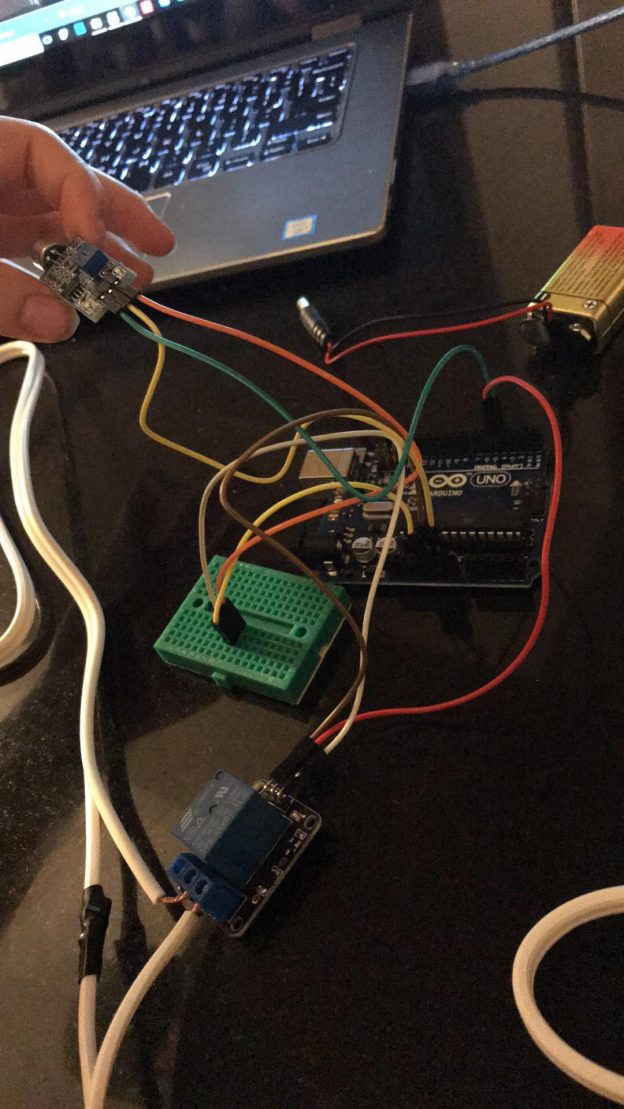
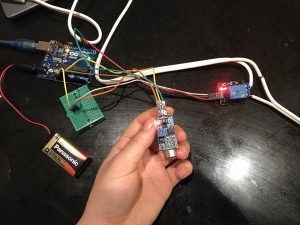
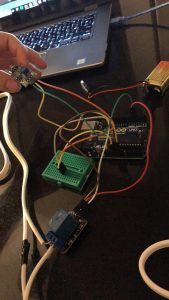
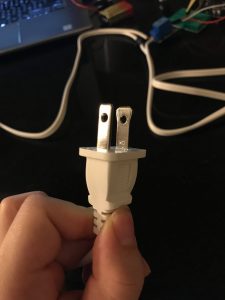
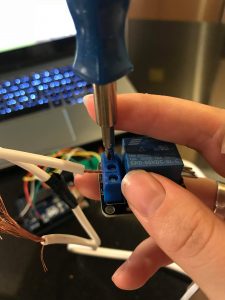
      • Arduino Board, Relay Module, Sound Sensor, 9V Battery, F to M Jumper 6x, M to M Jumper 1x, Breadboard, Battery Cable, mini screw driver, wire strippers and two prong light fixture.
  • Clap Sensing Arduino Light Switch Tutorial (<– Really amazing)
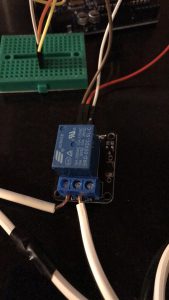
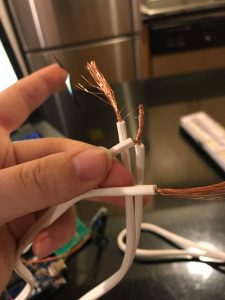
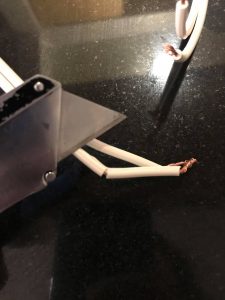
    • 1) Using your light fixture, expose the live wires
      • you can leave the neutral wire alone, but it might make the length crooked.
      • The live wire is the side that runs along the the more narrow prong of the outlet head.
    • 2) After exposing the wire connect them to the relay open pins of the relay module.
    • 3) Using 3x of the F to M jumpers, connect the Relay GND pin will be connected to the GND pin of the Arduino.
      • The Relay VCC pin will be connected to the +5V pin of the Arduino.
      • The Relay INPUT pin will be connected to the Digital 5 pin of the Arduino.
    •  4) Connection of the Sound Sensor uses 3x of the F to M jumpers
      • The Sound Sensor VCC pin will be connected to the +5V pin of the Arduino.
      • The Sound Sensor OUT pin will be connected to the Digital 4 pin of the Arduino.
      • The Sound Sensor GND pin will be connected to the GND pin of the Arduino.
    • 5) Connection of the breadboard, using 1x M to M jumper
      1. Abreast from one another connect the M to M jumper to the 5v pin in the Arduino.
      2. Connect the relay module’s VCC: positive power supply M jumper end to the bread board (abreast the 5v connection).
      3. Connect the VCC: positive power supply of the sound module to the breadboard abreast the module jumper.
    • 6) Up load code:
    • 7) Connect 9V battery with cable to Arduino.
    • 8) Plug in light and turn on.
    • 9) Start clapping because now you got light!
  • How it works: Video
  • Problems:
    • The biggest problem I had with this project was due to my own lack of knowledge. In the very informative and simple video tutorial of how to make a clap sensing light switch the architect does not articulate which of the two wired cables are neutral and live (probably because most people know, but I didn’t). Accordingly, my first time around I didn’t connect the live to the relay module, instead I connected the neutral so initially my light didn’t turn on at all. I was stumped and very discouraged by the 2nd time I had taken it apart and put it back together again. The next day I did some research on how to fix cords chewed up from pets and during this tutorial I learned that in addition to my neutral and live connection problem I probably damaged the wires post stripping. By the third trial I had made a solid connection and miraculously the light turned on and could sense my clapping… snapping, and any high pitched double ” bang.”
  • Images:

    • 7) Insert the Read More quicktag, otherwise your post will go one forever.

Week 6 Assignment – Lisa H.


Part 1

  • The goal of the project and/or desired interaction
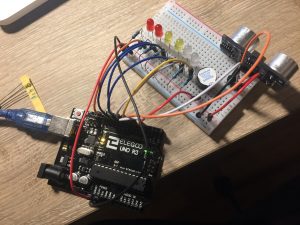
    The assignment was to adapt one of the light and/or sound circuits we built in class for another creative purpose. I choose to use the ultrasonic sensor to make an interaction with the buzzer and the LED lights.
  • A quick description of assembly and list of core components— 1x Arduino Uno
    – 1x Breadboard
    – 1x HC-SRO4 Ultrasonic Sensor
    – 1x Buzzer
    – 2x Green LEDs
    – 2x White LEDs
    – 2x Red LEDs
    – 7x 330-ohm Resistors
    – Jumper wires
  • How it works

    When you move away from the ultrasonic sensor, the buzzer and LED lights will not light or make a sound. If you go closer to the ultrasonic sensor, the LED lights will light up and the buzzer will get louder.
  • Any problems you encountered and/or solvedAt first, I wasn’t sure how to exactly get the sound to get louder as I move nearer to the ultrasonic sensor.  But I looked at some code and figured it out.
  • Images of your circuit
  • Arduino Code https://github.com/lynnn43/PhysicalComputing/tree/master/wk5_hwk_sensors

Part 2

  • Give a description of the protocol.

SPI-

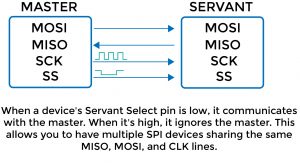
It is a synchronous data transfer technique which means there is a dedicated clock signal generated by the bus controller. It supports multi-master bus support and bidirectional transfer. It is a serial data protocol used by microcontrollers for communicating one or more peripheral devices quickly.

There is usually always one main master device controlling many other peripheral devices.

  • MISO (Master In Slave Out) – The Slave line for sending data to the master
  • MOSI (Master Out Slave In) – The Master line for sending data to the peripherals
  • SCK (Serial Clock) – The clock pulses which synchronize data transmission generated by the master
  • and one line specific for every device:
  • SS (Slave Select) – the pin on each device that the master can use to enable and disable specific devices.
  • Draw a diagram or illustration that shows how it works.
  • Give at least 2 examples of when you use this protocol.
    For example, SD cards and wireless transmitter both use SPI to communicate with microcontrollers to communicate without interruptions.

Continue reading

UART protocol research (Week 6)

UART

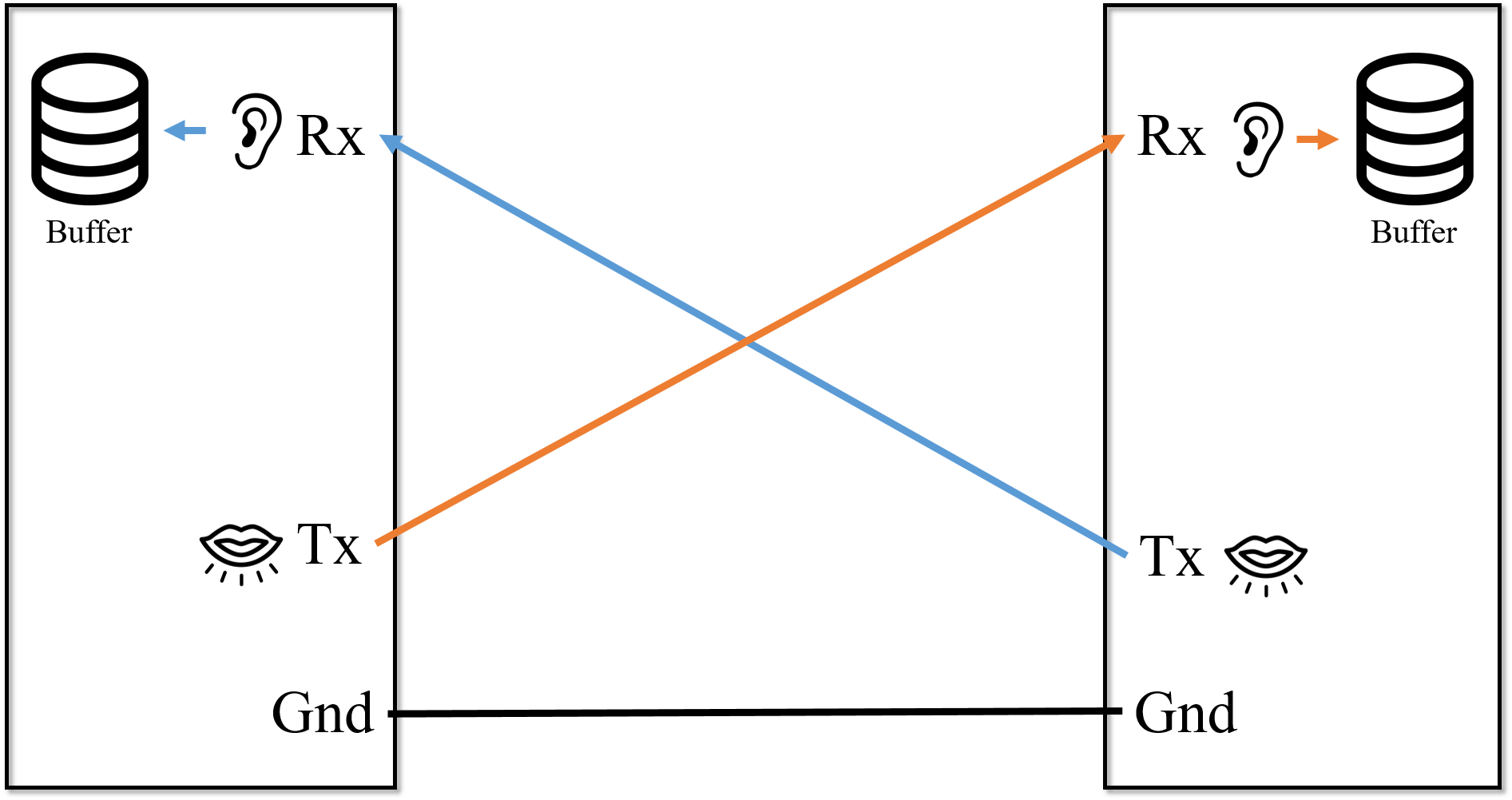
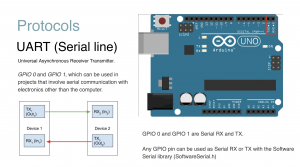
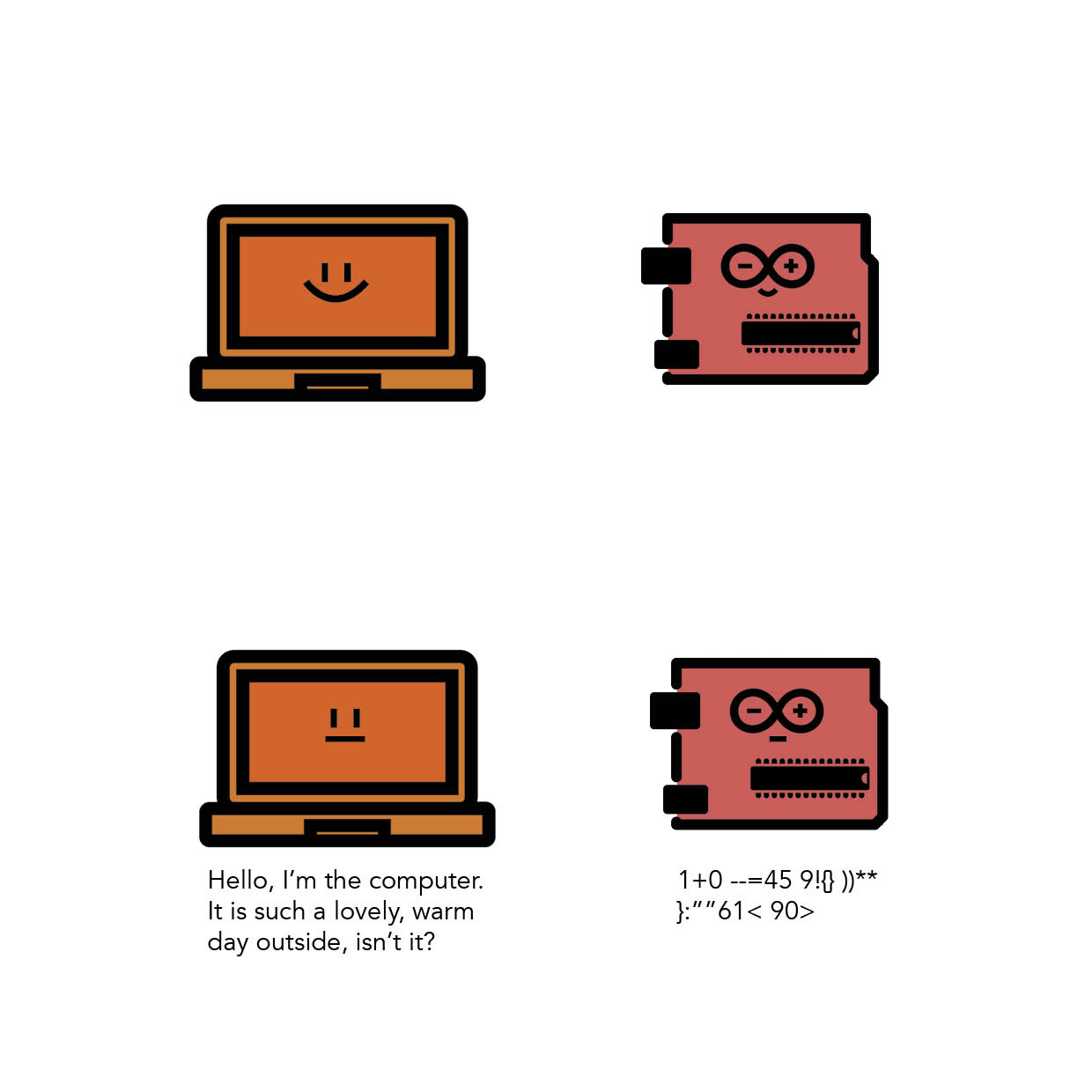
Universal Asynchronous Receiver / Transmitter : One of serial communication standards that Arduino can do with other devices. Its principle is similar to the conversation between two people. In order to have conversation, we need ears to hear, and mouth to talk. What one person talks through mouth goes to the ears of the other person. In this context, we can compare ears to RX(Receiver), and mouth to TX(Transmitter). The point is this: the data coming out of one side of TX(mouth) goes to other side of RX(ears), not TX(mouth). Which means, between different devices, RX and TX should be cross-linked.

In addition to RX and TX, electronic devices need to be linked ground to ground. Because each device has its own electric potential, unless one device’s ground is connected to another device’s ground, the data transmitted cannot be received correctly.

Continue reading

TAP BOX – Carla Molins

  • Goal of the project and/or desired interaction

Music box that creates different tones through 8 different capacitive sensors (tags). I wanted to try out a different interface for the instrument that provided a tactile experience too.

  • Quick description of assembly and list of core components

– 1x Arduino

– 1 x medium breadboard.

-CAP1188-8-Key Capacitive Touch Sensor Breakout

– Wires

Continue reading

Week 6 Assignment_Joyce

Goal:

The goal of this project is to use Capacitive sensing + piezo to create a song.

Components:


LCD x1


photocell x1

arduino board & breadboard

potentiometer x1

GitHub: https://github.com/joycemolly/cc-lab/blob/master/Use%20Capacitive%20sensing%20%2B%20piezo%20to%20create%20a%20song.

How the LCD works:

Arduino LCD Tutorial Circuit Schematic