Category Archives: Assignments

“The Dark Matter hut” – Final Concept Carla Molins

  • Refined project description

My concept is a little bit abstract, so I’m going to show my design question first:

How might a concept without visible instance like dark matter be represented for a better understanding?

My concept in order to answer that is a Experiential apparatus/ installation on perceiving a scientific concept (dark matter) for a better understanding.

This concept is based on a experimental installation trying to explore on different ways to “visualize” the concept including all senses but emphasizing haptics.

A whole system of small micro-experiences could be the result within a context of a bigger exhibition space such a science museum space installation.

  • Interaction/systems diagram

I’m still trying to define the form of my project, right now what I have in mind is this. I need to run several test to see if it’s feasible and it works as expected.

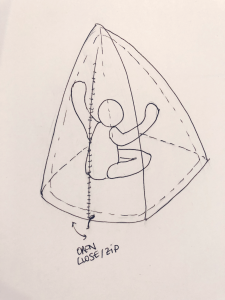
At this point, I see the installation in the shape of a haptic teepee. The user gets in to experience  dark matter by touching and triggering the system with those interactions.
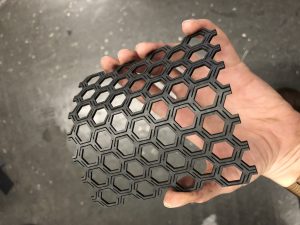
This is a more defined sketch. The inner pyramid, the cubicle, it’s covered by latex ( 2 sides + entrance. The outer structure has 2 sides of lights made of a mesh of LED’s. In between, there is a layer of chipboard connected to a stepper motor that will change its shape depending  on the tension applied to the material by pulling a string and bending the board.
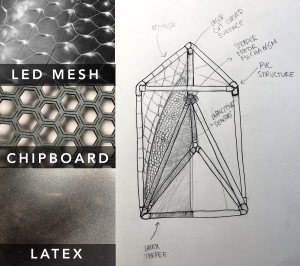
 

This tension will change the shape and as a consequence the shadow projected to the latex might seem closer or farther.
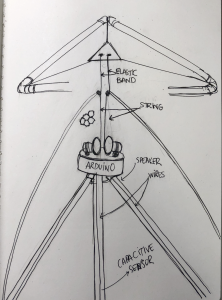
This is a more detailed drawing of the tech schematics.

  • Timeline with milestones

  • Materials list

Pcomp

  • Arduino
  • Power supply
  • Wire
  • 2 steppers
  • Capacitive sensors
  • 1 x Speaker
  • Led Mesh
  • Strings and rubber bands
  • Capacitive shield
  • conductive material
  • Solder

Other

  • Chipboard
  • PVC tubes and connectors
  • Latex
  • Precedents or references
  • Referents

TACTILE DOME

https://www.exploratorium.edu/visit/west-gallery/tactile-dome

JENNY SABINE WORK

http://www.jennysabin.com/new-page/

http://www.anilaagha.com


Final Project Plan (Week 10)_Alyssa

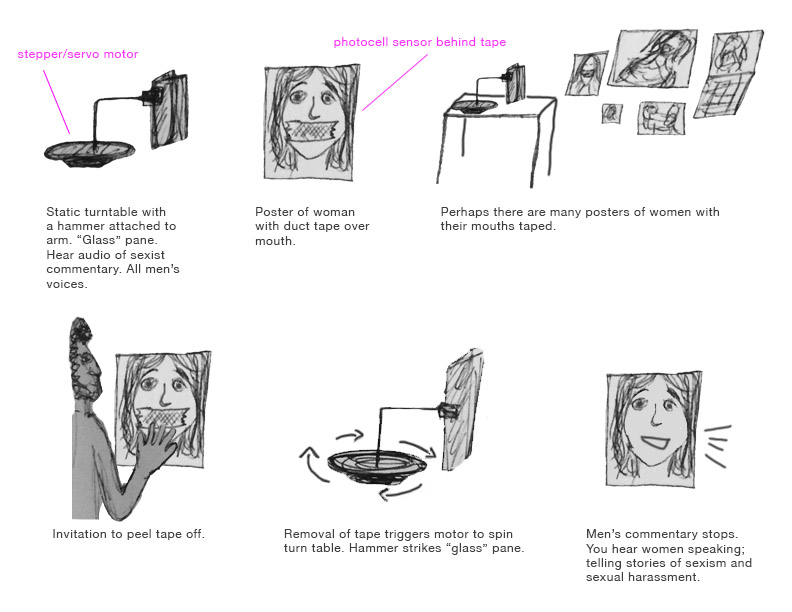
This will be a small installation that explores sexism, objectification, and empowerment through voice.  There will be a motorized arm with hammer, aligned to strike a perpendicular ‘glass’ pane. Accompanying the hammer/glass structure will be a printed poster of a woman with tape over her mouth. Upon introduction to the installation, the motorized arm will be static and audio can be heard: sexist commentary from men. There will be some invitation to the audience to peel back the tape from the poster. The removal of the tape will trigger the motor to start spinning, and thus the hammer to start striking the ‘glass’ pane. The audio will be replaced by women’s voices, consecutively telling their stories of sexism and sexual harassment. The hammer will continue striking until the tape is placed back over the poster’s mouth, returning status quo…or until the ‘glass’ shatters. 

Continue reading

Project proposal

Physical Computing Final Project: 

Description

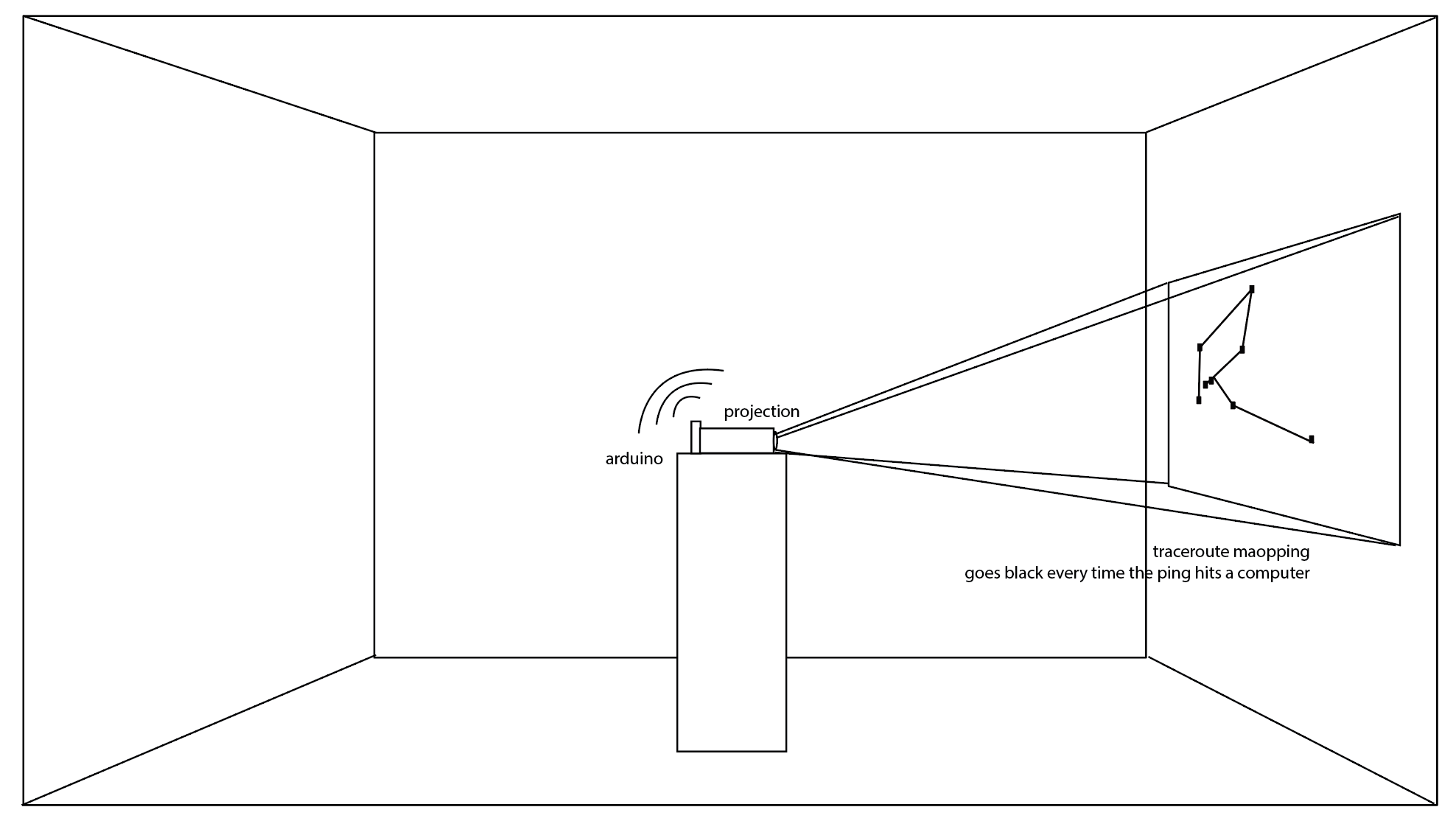
An Arduino that functions as a local server sends an autonomous and continuous “Ping” command that travels endlessly on the Internet infrastructure channels, drawing its path with light. The Arduino traces this Ping moving and hitting routers, IXP, servers. A bright and strong beam of light is projected from the Arduino to the space; this beam is broken every time the Ping hits a computer, having a second of darkness.
The traced IP locations are mapped to their geographical position and projected to the wall, translating the drawing the Ping creates.

Timeline: Continue reading

Project Planning

Group member: Weilin, Xiaoyu

Autonomous Objects: We are making a series of experimental prototypes that explore the ubiquitous but novel relationship between humans and objects. By reimagining the messages behind everyday objects, the project enables everyday objects to communicate and negotiate with us in their (possibly) preferable way.

Possible examples:

1. Printer: A printer who needs a break occasionally.
2. Hand Dryer: A hand dryer who messes with you.
3. Clock: A clock from China who only wants to live in the Beijing Time.

Interaction/systems diagram

(will be different depending on different objects)
Possible interactions seen from the link:
https://drive.google.com/drive/folders/1P6GbRzvbgr5uugYIn1UWCAOFMQYJbr63?usp=sharing

Timeline with milestones

Week 11: Idea development, research
Week 12: First prototype
Week 13: Play test
Week 14: Second prototype
Week 15: Refine
Week 16: Documentation, presentation

Materials list

Antique electrical devices

(will be different depending on different objects)

Precedents or references

When Objects Dream, ECAL
http://www.ecal.ch/en/3148/events/exhibitions/-when-objects-dream-exhibition-in-milan

BroomBroom
https://vimeo.com/208130162

Objects Thinking Too Much @ICC
http://okikata.org/%E2%98%83/omoisugosu_icc/

Objective Realities
http://www.creativeapplications.net/unity-3d/objective-realities-becoming-an-object-in-a-smart-home/

On the Secret Life of Things
http://www.creativeapplications.net/objects/on-the-secret-life-of-things-familiar-objects-new-behaviours/

Week 10: Project Timeline

  • Refined project description:


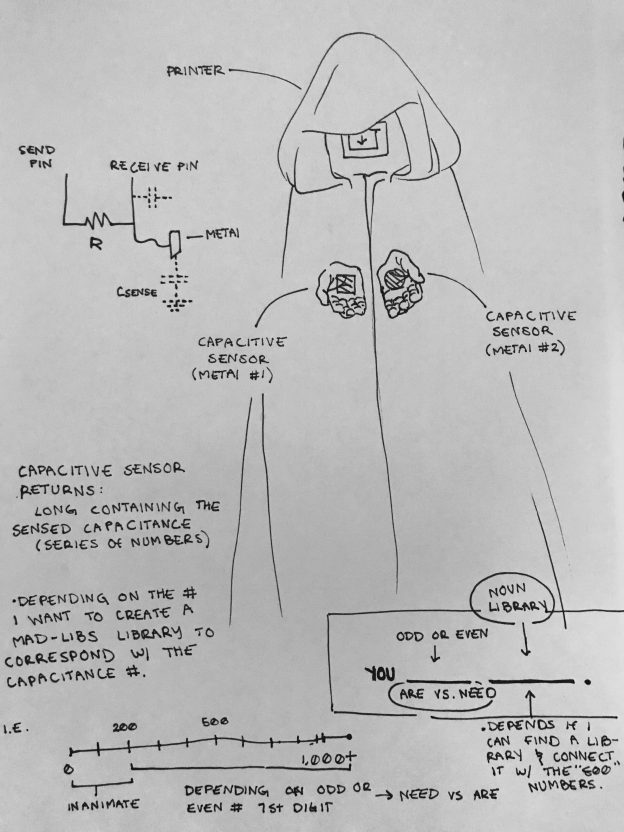
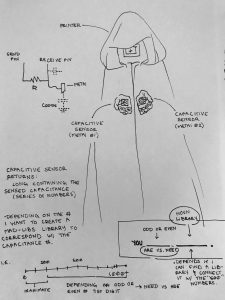
The Fortune Teller: Using an arduino, arduino printer, and a copper capacitive sensor I want to be able to give people a fortune based on the “random” amount of particles the sensor reads. Inspired by Mary Poppins measurement tape that collects the input of height and gives a corresponding description, “Perfect in everyway,” I want to design a fortune teller that reads its participants touch and subsequently gives them a corresponding fortune.


  • Interaction/systems diagram


I realize that capacitive sensors are widely unstable and inconsistent due to the incessant need for recalibration, but that is why I chose them. I like the random number of capacity because it considers so much; height, weight, if you just ate a lot, rubber shoes, lots of metal jewelry, and it able to reduce all this information to a “clean” and “concise” number.

Since I haven’t made the capacitive sensor yet I do not know the range return of capacitance number, but I acknowledge that I will have to code different responses if the number passes different thresholds. I imagine creating a mad-libs like formula for variables to be inputed depending on the number.

YOU *(ARE vs. NEED)* *(NOUN)*
Dependent on if the return variable is an odd or even number. Hopefully I can find a noun/ word library and have certain return numbers correspond to a word.


  • Timeline with milestones


Week 10:

  • Buy materials
  • Meet with learning center to compose the code
  • Connect Capacitive Sensor with Arduino

Week 11:

  • Connect Capacitive Sensor & Arduino with the Printer
  • Look for work library (noun)
  • Code the library and printer
  • Make plaster hand(s)

Week 12:

  • Begin to compose the entire project
    • Get/make a cloak
    • Make a stand

Week 13:

  • Final Touches


  • Materials list:


  • Precedents or references


  1. Use smoothing in your code.

If you followed the tutorial in step 3, you’ll notice that the signal from a cap sensor can be highly erratic. Therefore it’s a good idea to use some kind of smoothing function in your code. We used this one and it did a great job in stabilising the signal.

  1. Control as much of the environment as possible.

Everything from air humidity to electromagnetic noise to someone touching a cable will affect the signal strength. Eliminate as many variables as you can. Using shielded cables and making sure no other electronic equipment is operating in the immediate vicinity are two easy precautions you can take. Solid grounding will also reduce interference.

  1. Bigger surfaces = bigger signals.

The bigger the surface area of your sensor, the stronger your signal will be. A big surface area is also better for triggering the sensor at a distance.


http://www.instructables.com/id/Capacitive-Sensing-for-Dummies/

http://playground.arduino.cc/Main/CapacitiveSensor?from=Main.CapSense

https://www.arduino.cc/en/Reference/Libraries

Controlling DC Motors – on/off, speed, and direction (week 8)

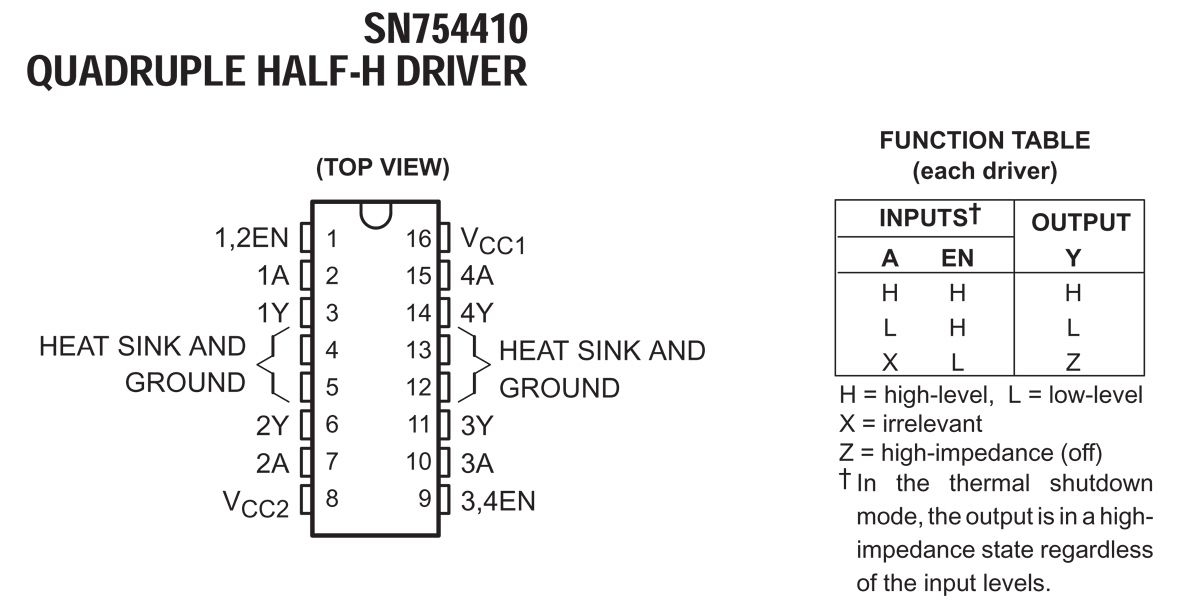
  • Goal of this project : I made a circuit that is controlling DC motor in 3 different ways – on/off, adjusting speed, and changing direction. In order to turn the motor on and off, I used button switch, and to change direction of the motor I used H-bridge and button. And by the “analog” value read from potentiometer, the speed is also adjustable.
  • Assembly description : To change direction of the DC motor I used H-bridge. The one I used is SN754410 and I found data sheet of that model through internet search.

Continue reading

Week 10 + 11 Assignment

Due April 5: Create a blog post with the following:

  • Refined project description
  • Interaction/systems diagram
  • Timeline with milestones
  • Materials list
  • Precedents or references

Due April 12: Create a blog post with the following:
Documentation of your first prototype. This can be a circuit, physical object, etc. It should include any initial challenges or questions you have.

Week 6: Making my own piano

This week’s assignment was to creatively rethink how sound and/or light could be incorporated into projects by modifying the input sensors. I decided to work with capacitive sensing because I love the possibilities it provides. It allows us to make our own sensors and enhances the quality of the interactive experience.

List of Materials

1 x Elegoo Uno R3

1 x Full sized breadboard

1 x Piezo buzzer

3 x Graphite strips

3 x LEDs

Resistors: 3x 220 Ohms (for the LED), 3 x 1 Megaohms (for capacitive sensing)

Jumper wires

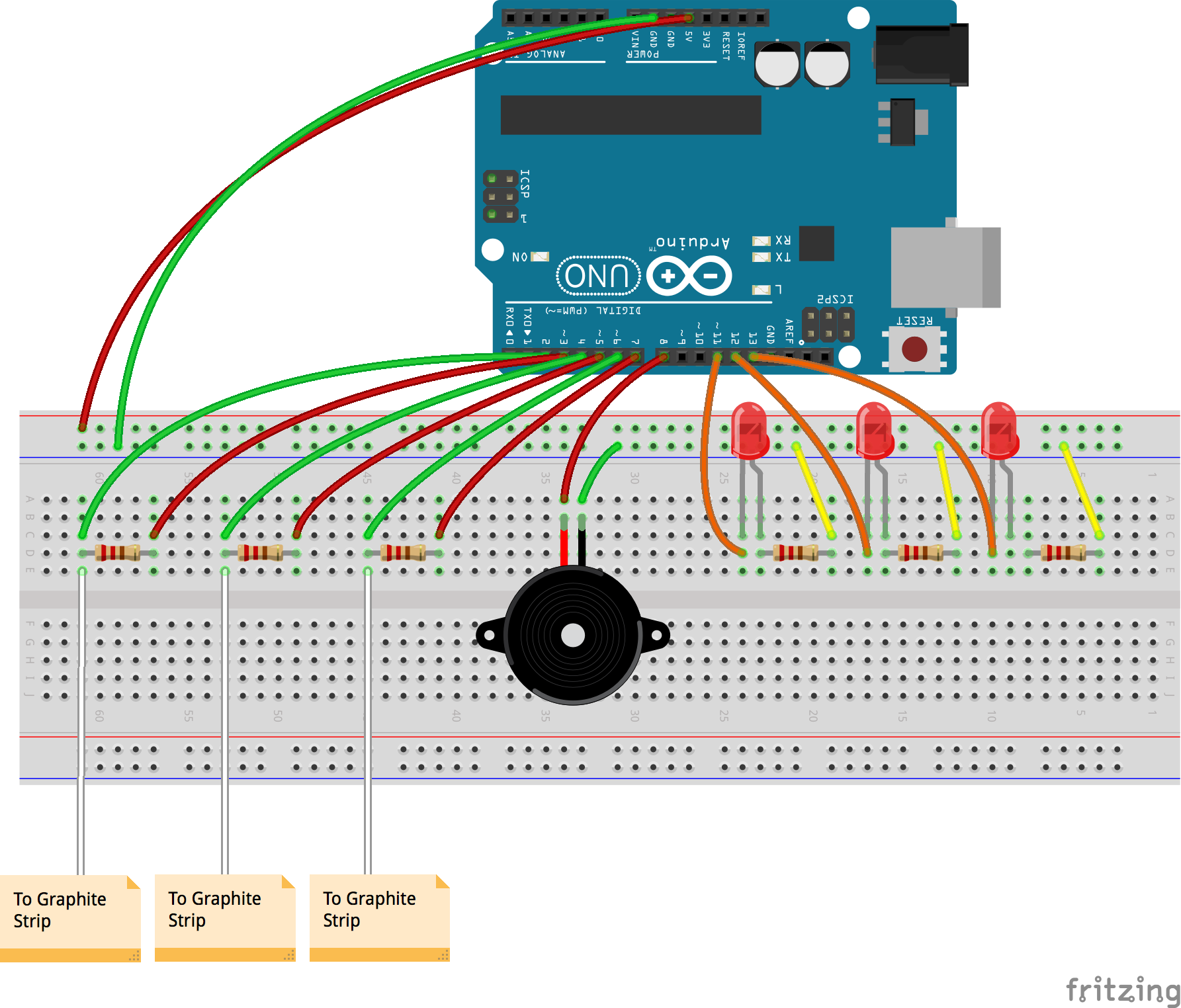
Fritzing diagram

Description of assembly 

  1. Connect the ground side of the breadboard to the GND pin, and the power side to the 5V pin, on the Arduino.
  2. Add three LEDs to the circuit, with the shorter legs connected to the ground via 220 Ohm resistors, and the longer legs to digital pins 11, 12 and 13 respectively. Connect the Piezo buzzer with the ground connected to the ground of the breadboard, and the power to digital pin 8. Both the LEDs and the buzzer act as the output, reacting to changes in the capacitive sensors.
  3. To make one capacitive sensor, connect two jumper wires on either end of a 1 Megaohm resistor to digital pins 2 and 3. The resistor leg, connected to pin 2, should also be connected through the jumper wire to the graphite strip.
  4. Repeat step 3 two more times, using digital pins 4, 5 and 6,7.
  5. Upload the code to the Arduino IDE.
  6. Debug, check connections and keep working!

How it works

Capacitive sensing works on the principle of using a conductive material to complete the circuit. This circuit works as follows. A high resistance of the order of a megaohm is placed on the breadboard, both ends of which are connected to say, digital pins 2 and 3. Digital pin 3 acts as the input and allows a steady stream of electrons to flow through the circuit. The resistor inhibits the flow and only lets a small number of electrons pass through the other end. The other end in addition to being connected to a digital pin is also attached to a jumper wire. When we touch the metallic end, we pass on a large number of electrons from our body to the circuit. The Arduino can sense this change and can be coded to control an output by defining a threshold value.

Iterations 

Graphite conducts electricity and this property can be utilized in interesting ways. I shaded some bits of paper with an HB pencil and connected them to the breadboard so that they could act as switches. For the first iteration I decided to make an instrument where, on pressing each key, one would hear a different, pre-programmed song through the Piezo buzzer. I first tried with the example code melody to see whether all three switches were working individually. On graduating to coding different songs, I had limited success.

This further led me to think about how a user could make their own music. On pressing a key, they would hear a tone, akin to a piano. The various sequences and combinations could culminate in unique tunes. I had trouble associating one LED to one graphite switch. After multiple iterations, it turned out to be a glitch in the code which I then rectified.

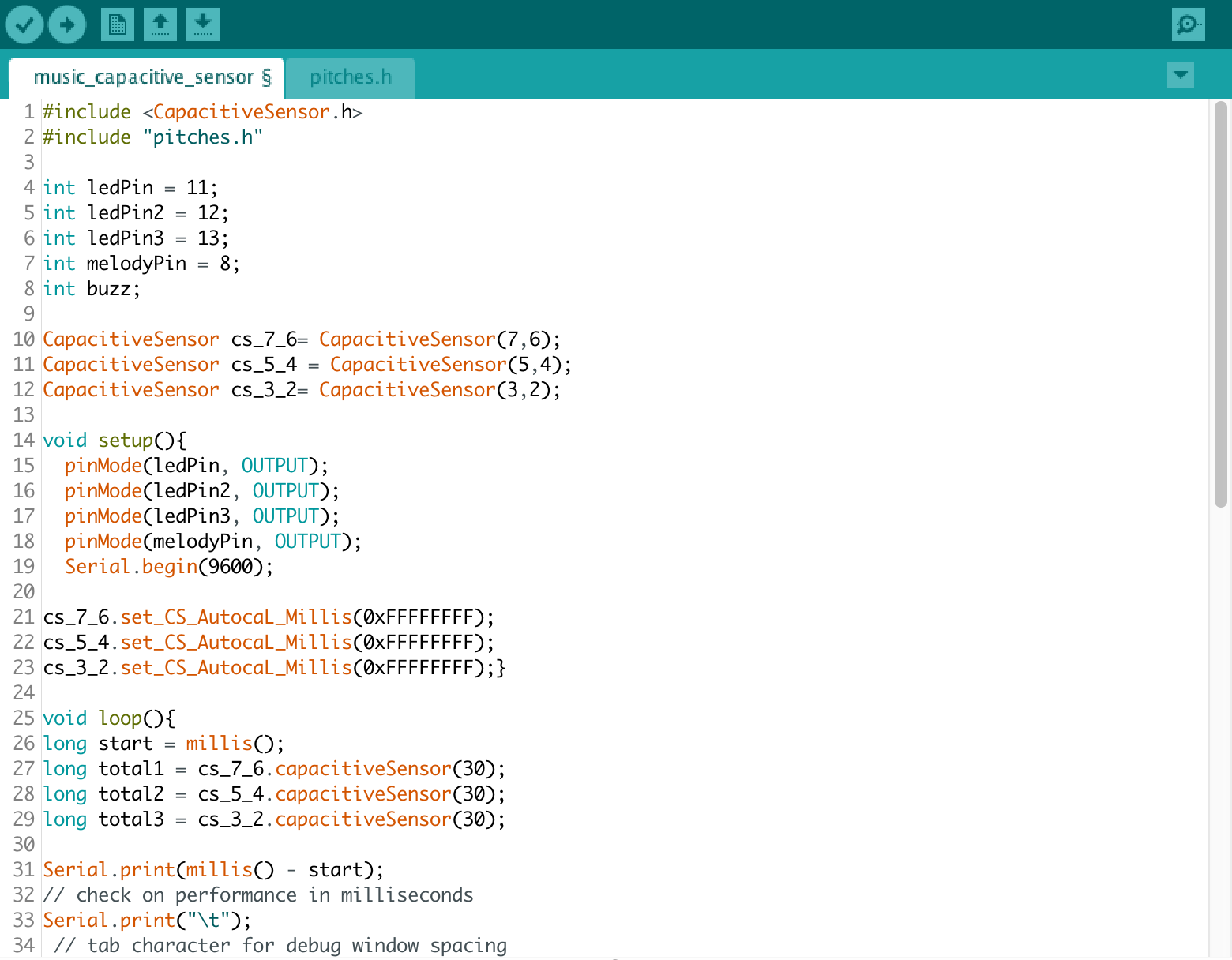
Code 

Continue reading

Servo Motors (Week 8)_Alyssa

What are the different motors?

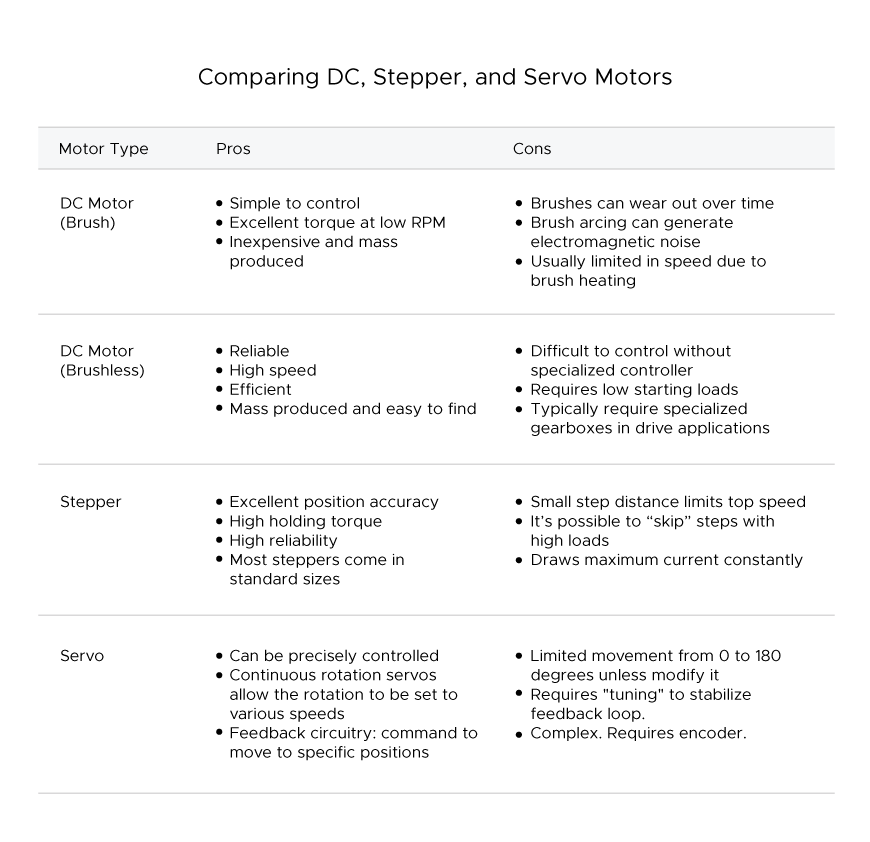
DC motors rotate continuously. Their speed is controlled by PWM, which actually turns the motor on and off so rapidly it looks like a smooth movement. DC motors rotate until power is detached.

Servo motors are good for exact tasks because they can be more precisely controlled than standard DC motors. Power to the motor is constant but regulated by the servo control circuit. PWM  “unlike DC  motors it’s the duration of the positive pulse that determines the position,   rather than speed, of the servo shaft.” (source: https://www.quora.com/What-is-the-difference-between-a-DC-motor-a-servomotor-and-a-stepper-motor)

Stepper motors use electromagnets around a central gear to determine the position. Each electromagnet must be individually powered to make the motor shaft turn.

Continue reading